
How to set "priority" sites, topic clusters, and content groups
You can mark sites, Topic Clusters, and Content Groups as "priority" (⭐) in SEO Gets. This helps your most important properties and themes stand out across reports and screens, so it's easier to stay focused on the work that matters most.
Use Content Groups for related pages and Topic Clusters for related keywords. After you create them, you can click the star icon to mark them as "priority."
When to use priority
Priority is useful when you want to keep your most important SEO work visible without digging through everything else first.
A good fit for priority is anything tied to:
Your most important sites
Revenue-driving products or services
Lead generation pages
Core topics you're actively trying to grow
Key site sections you review often
If everything feels important, start small. Pick the sites, groups, and clusters you'd check first if traffic dropped tomorrow.
Set up a Content Group or Topic Cluster first
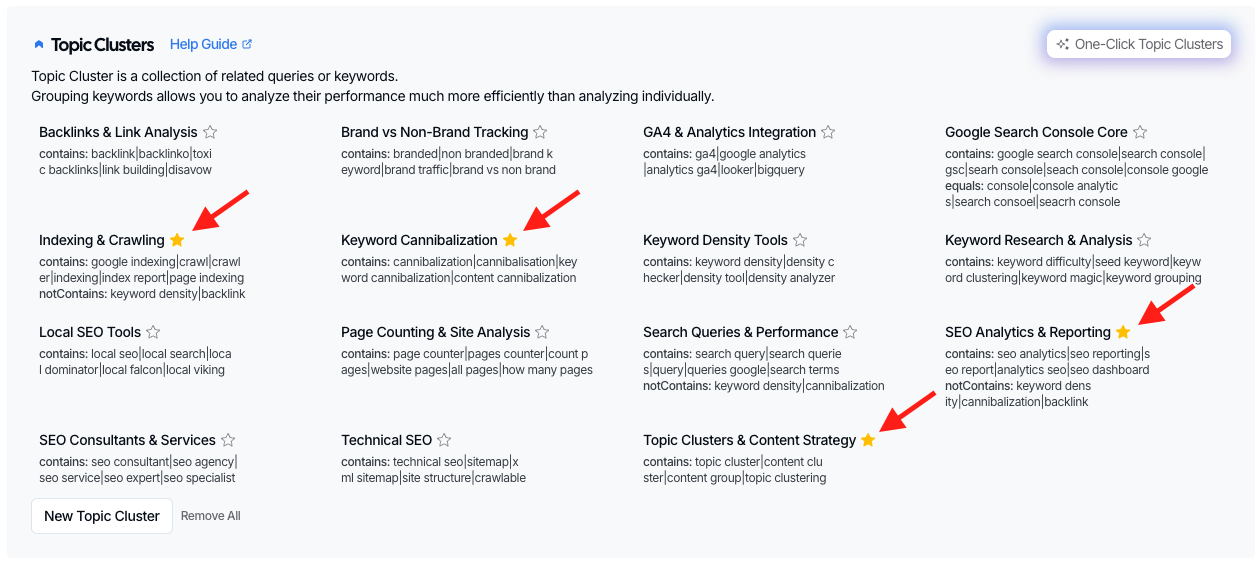
Before you can mark something as priority, it needs to be created as a Content Group or Topic Cluster.
Open the site you want to work on.
Go to Settings.
Choose Content Groups if you want to track related pages, or Topic Clusters if you want to track related keywords.
Create a new group or cluster.
Save your setup.
If you want the full setup steps, use these guides:
What changes after you mark something as priority
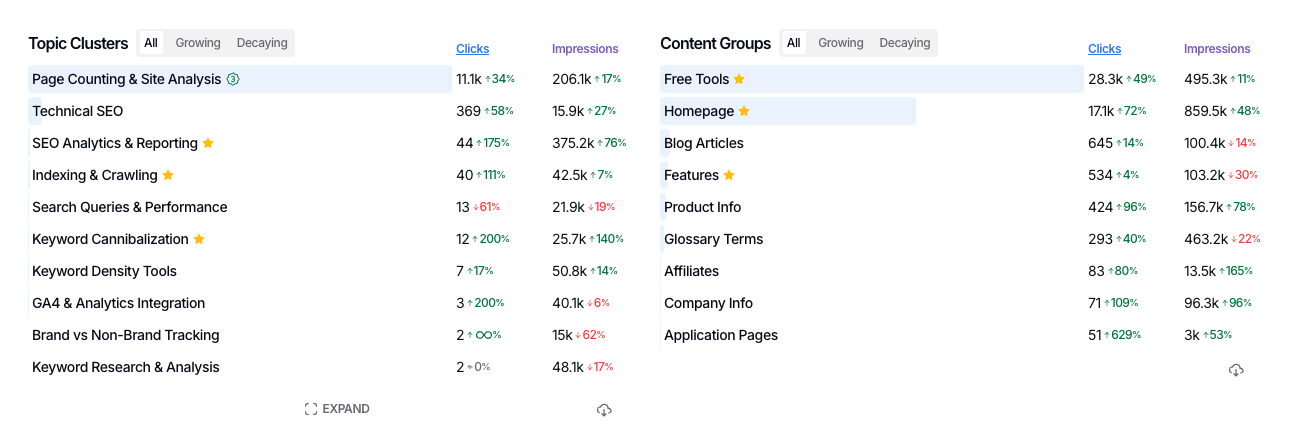
Priority doesn't just act like a label. SEO Gets uses it to surface related pages and keywords at a glance.
Your priority items are highlighted across reports and screens.
When you return to the dashboard, priority Topic Clusters and Content Groups are clearly marked.
Their individual queries and pages are also surfaced, making it easier to review the details behind each priority area.
New Rankings will tag queries that match the regex for your priority clusters and groups, enabling you to instantly spot new keywords connected to priority objectives.
This makes priority especially helpful for weekly reviews, client check-ins, and ongoing monitoring.
What to do next
Once your priority setup is in place, use your dashboard and reports to review performance across prioritized clusters, groups, pages, and keywords. If you want help deciding what action to take next, see How to group and track content performance and Separating signal from noise when analyzing your content.