
How to set up your first content groups
Content groups let you track a set of related pages in SEO Gets. Use them when you want to measure a blog category, product pages, service line, or any group of URLs over time.
Set up your first content group
Navigate to one of your SEO Gets properties.
Go to Settings.
Scroll down to Content Groups.
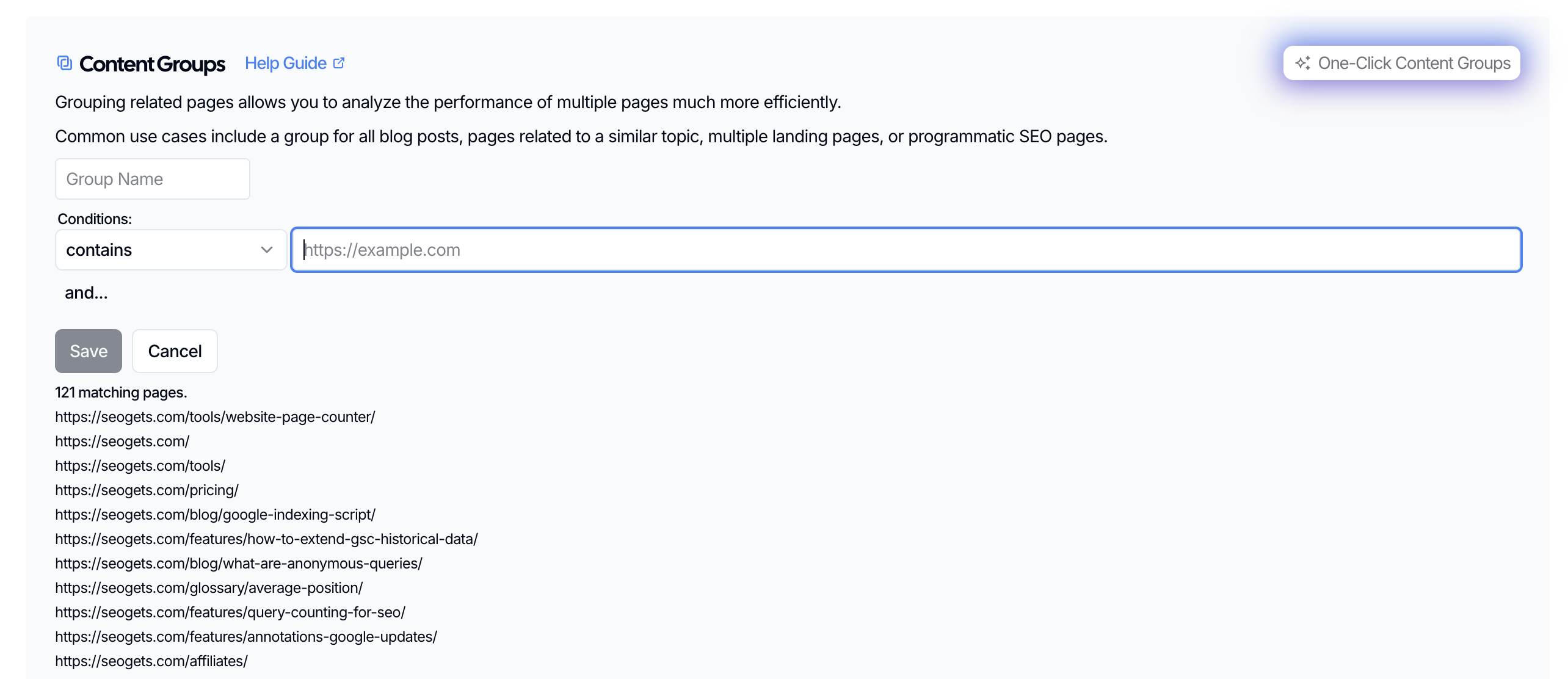
Click New Content Group.
Give your group a name based on the pages you want to track, like Blog, Features, or Case Studies.
Choose how you want to match pages:
Use a simple pattern if your pages share a clear URL structure, like
/blog/.Use Regex if you need a more flexible rule across multiple URL patterns, such as "contains"
/blog/and/resources/for a content group that articles living in two separate subfolders.
Click Save.
SEO Gets will create the content group and make it available in your reports and dashboard filters.
Accounts with AI credits can select One-Click Content Groups to automatically generate content groups. This is a great time-saver if you need to set up content groups quickly or for multiple sites.
Start with subfolders that have consistent URL structure
Start with a section of your site that already has a consistent URL string pattern. That makes setup faster and keeps your reporting clean.
Popular content groups:
Blog posts i.e. /blog/ or /articles/
Products i.e. /product/
Feature pages i.e. /features/ or /solutions/
Location pages i.e. /locations/ or /jurisdictions/
Case studies i.e. /case-studies/ or /results/
Beware of mixed page types with inconsistent URLs. Consider running a consolidation audit or URL restructuring project before creating your content groups if your URL structure is inconsistent.
If your URLs are messy, create one simple group first, then add more specific groups later.
Simple pattern or Regex?
Use a simple pattern when all the pages live in the same folder or share the same subfolder. Use Regex when your pages live in different places but still belong together.
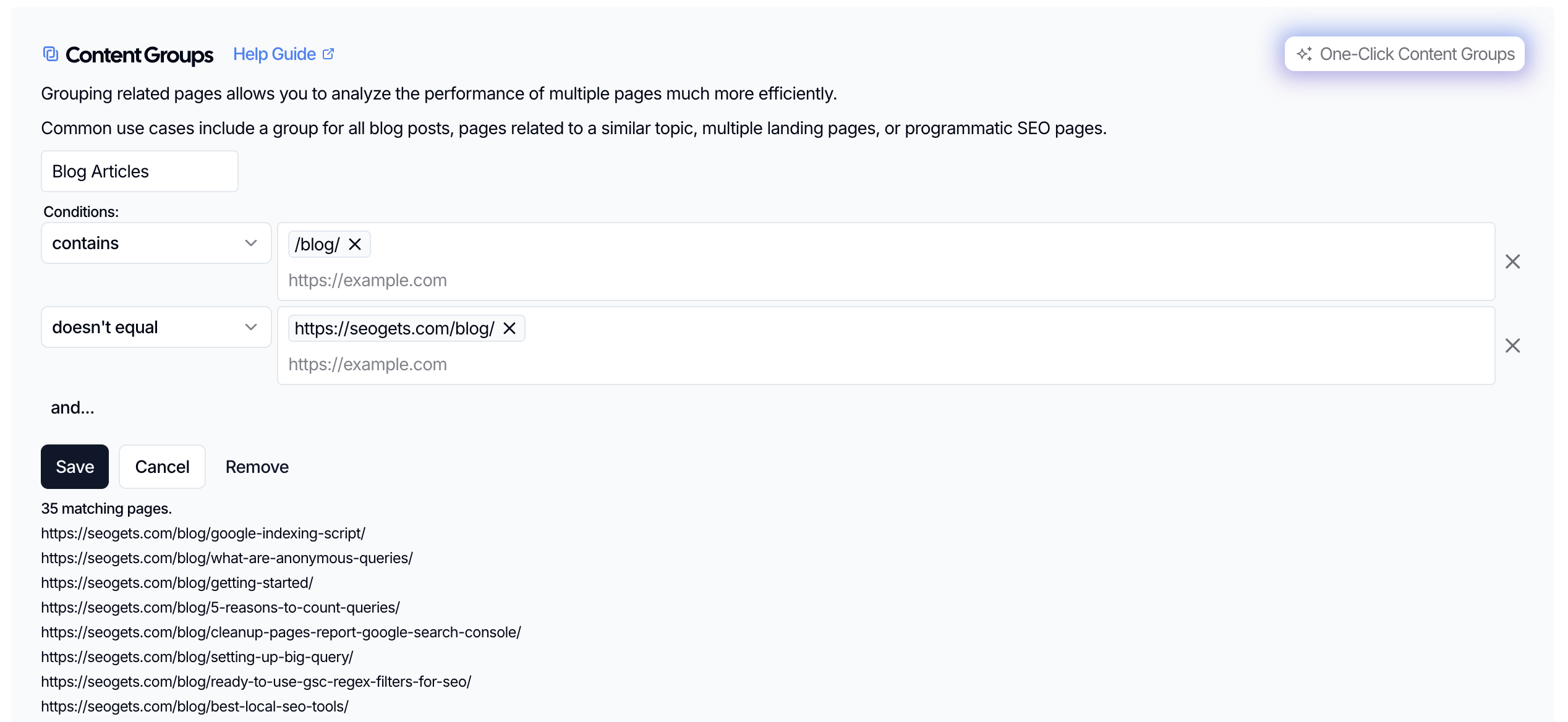
If you're not sure, start simple. You can always refine the rule after you see which pages are included. Below, we've included a sample from one of our Content Groups that groups our blogs. We used a "contains" regex to capture the entire blog, but since the blog hub where our content lives isn't actually a blog article, we decided to use a "doesn't equal" regex to remove it from the content content group.
What to do next
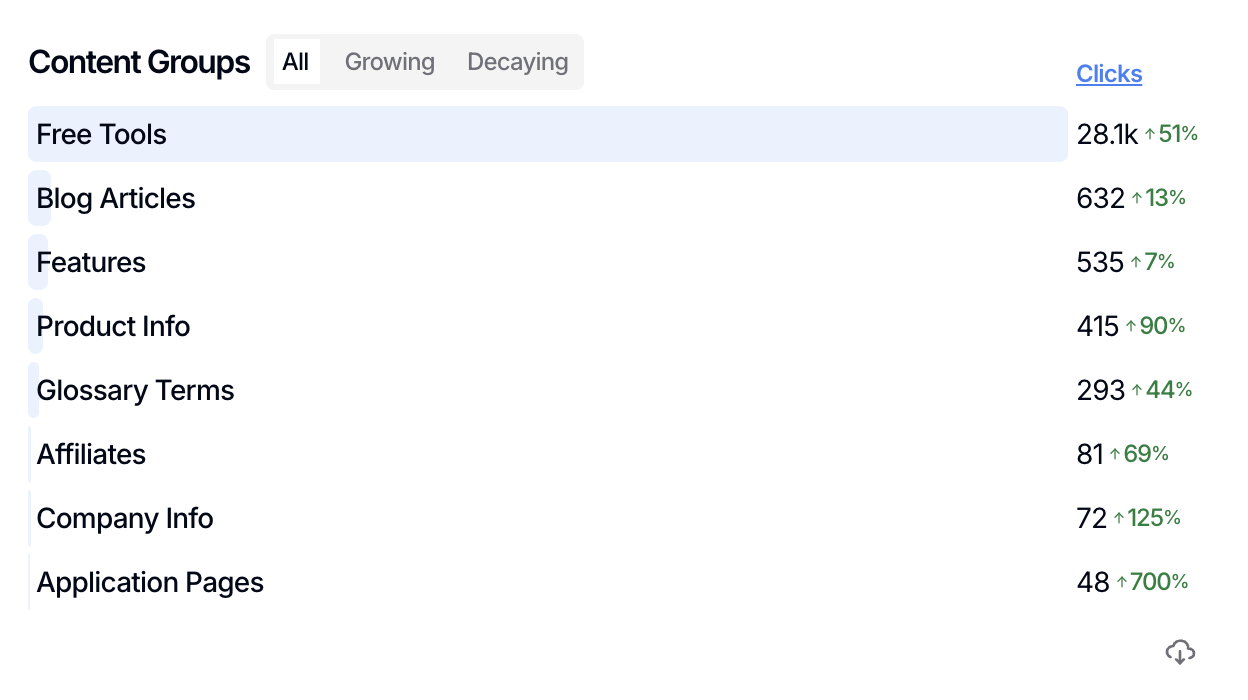
After your cluster is added, open the dashboard and filter by that content group to review its keywords, pages, countries, and trend data. This is the easiest way to see whether a group of URLs or subfolder is growing, decaying, or starting to gain traction.
Tips for your first content group
Start with a well-organized section of your website. The blog is the classic example because WordPress sites have built-in subfolders for blog content, making it simple to organize and maintain consistent structure.
Focus on groups of URLs that accomplish a specific job, such as "who we serve" pages targeting a specific persona or feature pages that address a common job-to-be-done.
Create a content group for your homepage using the condition "equals" [your domain] to track homepage performance.
If you're working with an agency or contractor to build content, create a separate content group with all of the URLs they creating or updating to keep tabs on the efficacy of your program.
If you also want to group pages by keywords instead of pages, use Topic Clusters from your settings.