
Track the impact of your SEO work
SEO work can feel like a never-ending checklist. Measuring the impact of this work has always been one of the greatest challenges facing practitioners. On a given day, SEOs might deploy internal links, update a series of headers, redirect pages, implement technical SEO fixes, and more. SEO Gets is designed to simplify the process of recording and measuring these activities by:
Monitoring performance at a glance
Logging and annotating SEO work
Automating SEO tests
Maintaining a record of detailed logs, test results, and charted annotations
Reviewing results so you know what to do next
Start with the Master dashboard
The Master Dashboard is your starting point for daily monitoring. It shows all your connected properties in one view so you can spot trends without clicking into individual sites.
From the dashboard, you can:
Filter by tags to focus on a subset of sites (for example, all client sites in one industry)
Sort by metrics like clicks, impressions, or position to see what's moving
Set date ranges to compare performance week over week, month over month, or across custom date ranges
Use dimension filters to narrow your view by country, device, or search appearance
This is where you catch broad patterns — like whether a group of sites is trending up or down — before diving into specifics.
Drill into individual properties
Click any property from the Master dashboard to open the Property dashboard. This is where you track performance for a single site in more detail.
The Property dashboard gives you performance charts with Annotations overlaid so you can see what changed and when. If you've set up Content Groups or Topic Clusters, use them here to track specific sections of your site without noise from unrelated pages.
Log every change with annotations
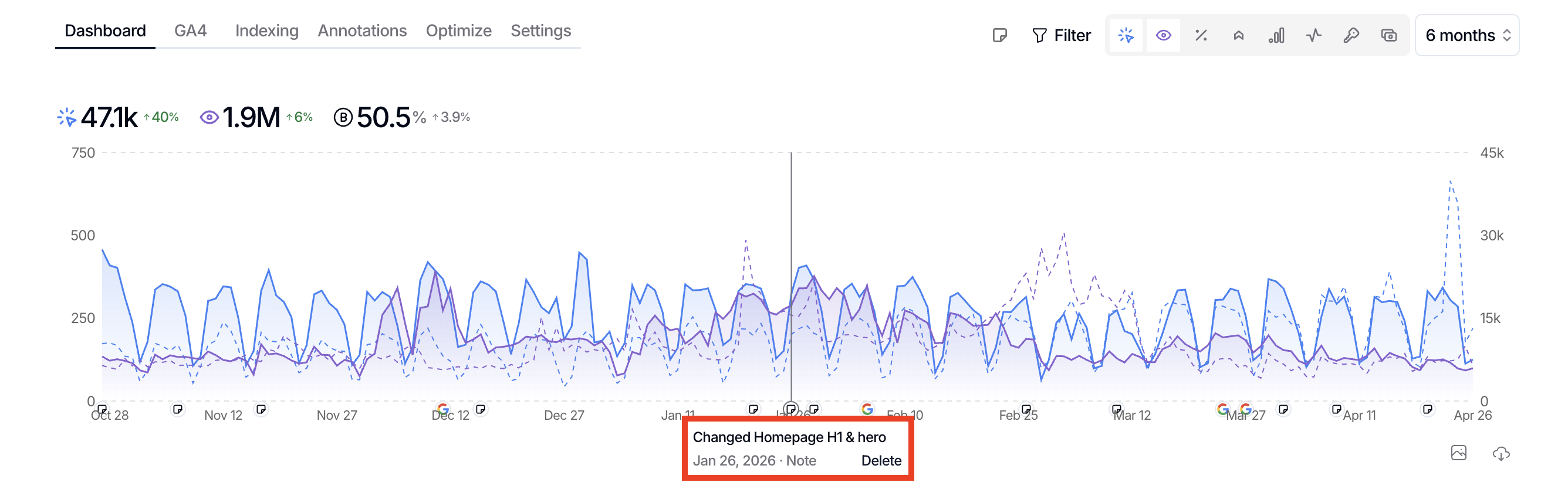
Annotations are how you track what work happened and when. Every time you update a page, fix a technical issue, or launch new content, log it as an annotation.
Annotations appear as markers on your performance charts, so you can visually connect changes in traffic or rankings to specific work you did. This makes it easy to answer questions like "did that title tag update help?" or "when did traffic start dropping after that redesign?"
You can add annotations in two ways:
From the Annotations tab in the Property dashboard — best for batch logging after a work session
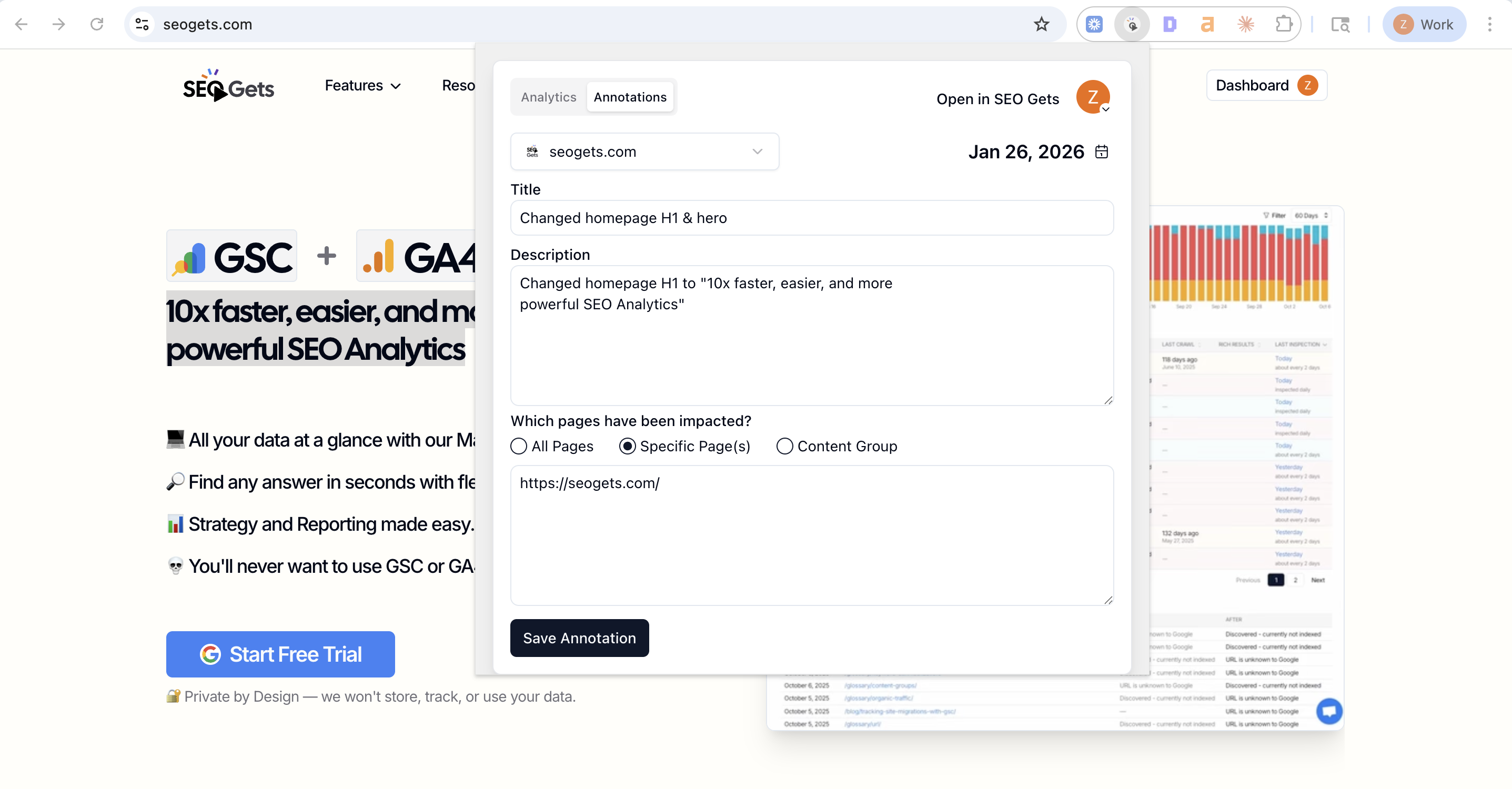
Using the SEO Gets Anywhere Chrome extension — perfect for logging changes while you browse and update pages
For tips on using the Chrome Extension, see How to Use SEO Gets Anywhere.
When you create an annotation, specify which pages it applies to. You can tag a single page, a list of pages, or an entire content group. This keeps your timeline accurate and makes it easier to review results later.
Creating new annotations vs editing existing ones
When you make additional changes to the same pages, create a new annotation rather than editing the old one. This keeps your timeline accurate and lets you compare the impact of each round of work separately.
For example, if you updated URL structures in December and then made further URL changes in May, add a new annotation for the May changes. In the description, you can reference the previous round — something like "Second round of URL updates; first round was December 2024." This gives you clear before/after context for each change.
Editing an old annotation would merge the timelines together, making it harder to see which work drove which results.
How SEO tests work with annotations
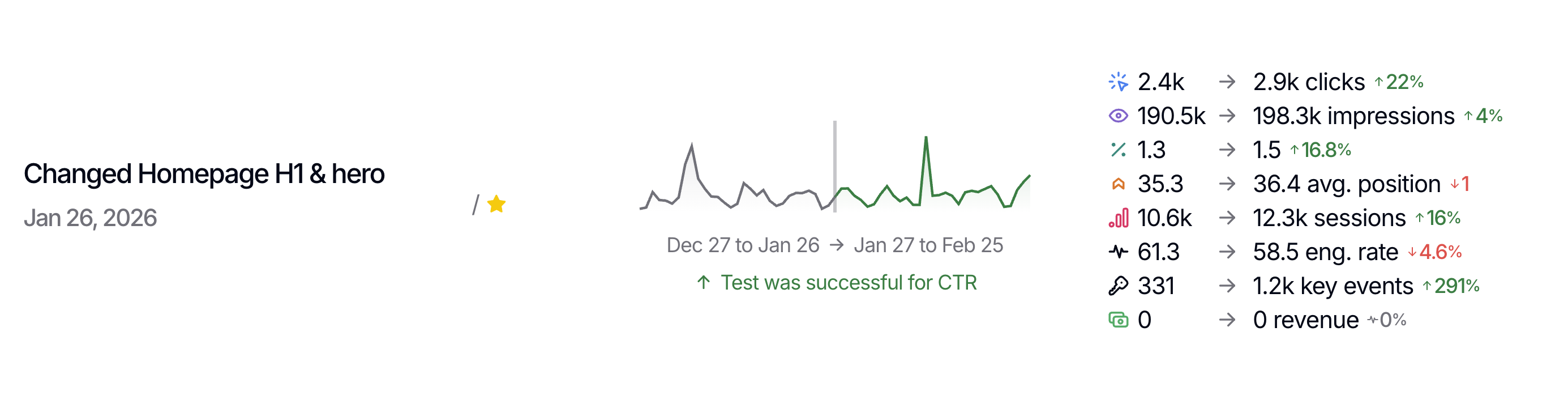
When you create an annotation, SEO Gets automatically starts an SEO test. This measures the impact of your work before and after the change, so you can see whether it helped, hurt, or had no effect.
Once enough data has been gathered, the test results appear alongside your annotation. You'll see performance changes across all core metrics:
Clicks and impressions — did visibility or traffic change?
CTR and average position — did ranking or click-through rate improve?
Sessions and engagement rate — if you've connected GA4, did user behavior shift?
Key events and revenue — did the change impact conversions or revenue?
This turns every annotation into a measurable experiment. Instead of wondering whether a title tag update or internal link change made a difference, you get clear data tied to the specific work you logged.
For accurate test results, keep your annotations specific. Tag the exact pages you changed rather than applying a broad annotation across an entire site. The more precise your annotation, the cleaner your test data will be.
When to expect results
SEO tests need time to gather enough data before showing results. This typically takes a few weeks depending on your site's traffic volume and the scope of the change. SEO Gets will surface results automatically once statistically meaningful data is available.
How to use test results
Use test results to answer practical questions:
Did that meta description rewrite improve CTR? If yes, apply the same approach to similar pages.
Did that content refresh recover traffic? If no, revisit the update or try a different angle.
Did that internal link boost rankings for the target page? If yes, replicate the pattern elsewhere.
Over time, your annotation history becomes a library of what worked and what didn't — a reference you can use to make smarter decisions about future work or to keep stakeholders in the loop when they ask about the specific SEO work you've completed (and what the impact was).
Why older annotations and tests seem to disappear
Choosing a shorter date range in the Property dashboard filters out annotations and test results that fall outside the window. Your notes and tests are still saved — they are just hidden from the current view.
To bring older work back into view, widen the date range in the date picker. For example, select a 12- or 24-month window.
For details on how date ranges and annotations affect chart boundaries, see Why chart exports show different date comparisons than the dashboard.
What to do next
Once you're tracking consistently, the next step is turning what you see into a plan. Use your tracking data to decide what work to prioritize: