
Priority pages
Priority pages are your most important URLs — the ones you want to keep front and center during regular reviews, sprint planning, and stakeholder reporting. In SEO Gets, you mark pages as priority by marking their Content Groups or Topic Clusters as priority, then filter your dashboard and reports to focus on just those pages.
How priority pages work
Priority pages aren't a separate list — they're the pages that belong to groups and clusters you've marked as important. When you mark a Content Group or Topic Cluster as priority, SEO Gets automatically includes all matching pages whenever you filter for priority content.
This means:
Mark the group, not individual pages — You set priority at the group or cluster level, and every matching page inherits that status
Filter with one click — Use the Priority Pages filter to instantly narrow your view to just the content that matters most
See visual markers — Pages that belong to priority groups show a yellow star in filter chips, so you can spot them at a glance
Priority is especially useful for content tied to revenue, leads, or strategic initiatives — the pages where performance changes matter most to your business.
Mark a Content Group or Topic Cluster as priority
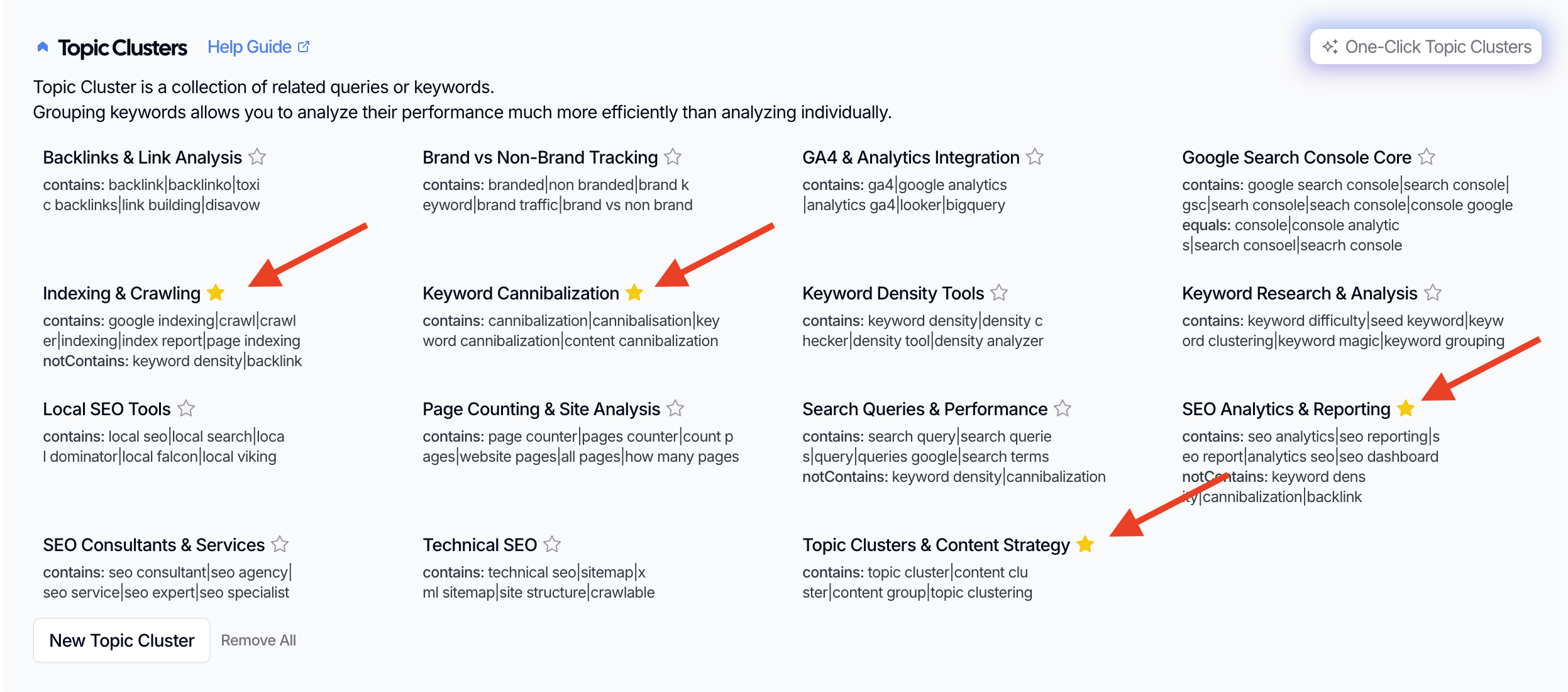
Before you can filter for priority pages, you need to mark at least one group or cluster as priority.
Open Settings for your property.
Scroll to Content Groups or Topic Clusters.
Find the group or cluster you want to prioritize.
Click the star icon next to its name to mark it as priority (the star will fill in yellow when active).
Your changes save automatically.
Once marked, any page that matches that group's URL pattern or that cluster's keyword set becomes a priority page.
Filter your dashboard for priority pages
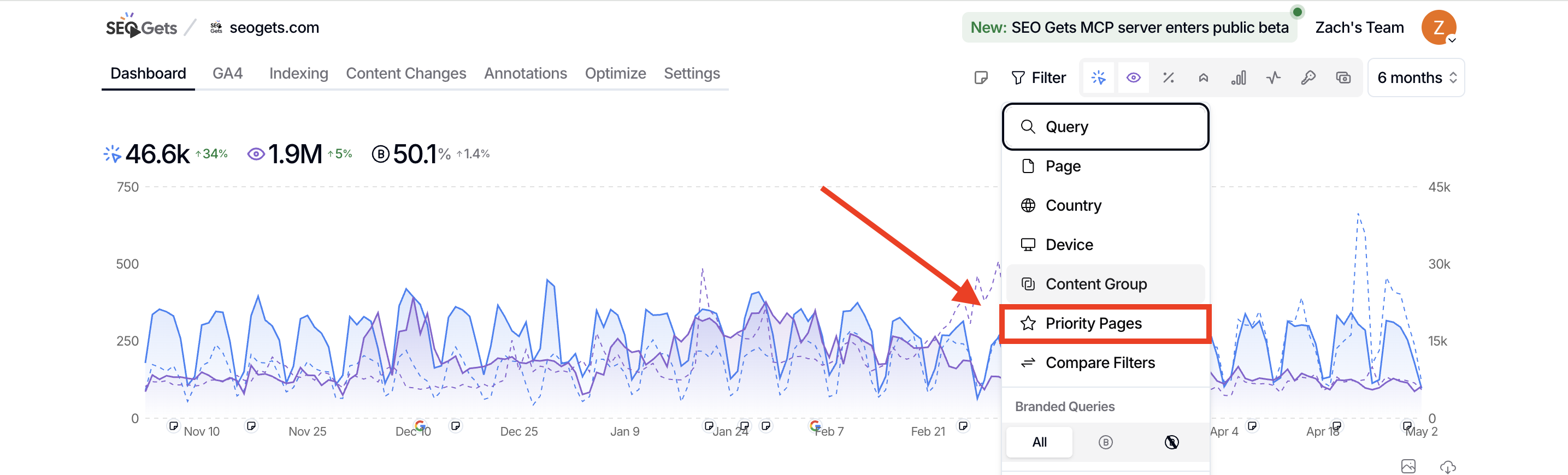
After you've marked groups as priority, you can quickly narrow any view to show only those pages.
Open your property dashboard, the Indexing page, or the Content Decay Heatmap.
Click the filter button in the search/filter toolbar.
Click Priority Pages in the filter popover.
The dashboard updates to show only pages from your priority groups and clusters.
You'll see a "Priority Pages" chip in your active filters, confirming the filter is applied. Remove the chip to return to your full view.
When to use priority pages
Priority pages help you stay focused on what matters most. Here are a few practical ways to use them:
Sprint planning: Filter to priority pages when building your next content or SEO sprint. You'll see exactly how your most important content is performing and where to focus updates.
Update prioritization: Combine the priority filter with decay signals to catch slipping performance on your highest-value pages before it becomes a problem.
Stakeholder reporting: When you need to report on SEO performance, filtering to priority pages keeps the conversation focused on the content your stakeholders actually care about.
Quick reviews: Instead of scrolling through hundreds of URLs during your weekly check-in, filter to priority pages and review what's important in seconds.
Combine priority filters with other reports
Priority filtering works alongside other SEO Gets tools to help you make faster decisions. Try combining it with:
Striking Distance Keywords: See which priority pages are close to page-one wins and deserve optimization effort first.
Content Decay Heatmap: Spot declining performance in your priority content and catch issues early.
Keyword Cannibalization: Check whether multiple priority pages are competing for the same terms, which could hurt both.
Each of these becomes more actionable when you're already focused on your most important content.
What to do next
Group and track content performance to set up the Content Groups and Topic Clusters you'll mark as priority.
Create a prioritization plan for SEO work to build a repeatable workflow around your priority content.
Find pages that need updates to identify specific optimization opportunities within your priority groups.