
Use one-click setup in SEO Gets
One-click setup automatically configures your brand summary, branded keywords, topic clusters, and content groups using AI. You can run the full setup to generate everything at once, or choose just the pieces you need from the relevant settings section.
When you create your account, you will have the option to run one-click setup automatically. You can also start it manually from any site's Settings page later.
What one-click setup does
When you run one-click setup, SEO Gets uses AI to automatically analyze your property and generate:
Brand summary — creates a concise overview of your brand's search presence
Branded keywords — identifies and filters branded vs. non-branded traffic based on your domain and common brand name variations
Topic clusters — groups related content topics by queries and keywords so you can analyze performance across themes
Content groups — organizes your pages by subfolder or URL patterns for clearer reporting
You can run the full setup to generate all of these at once, or start just one from its individual settings section when that is all you need.
Run the full setup
When you login to SEO Gets for the first time, SEO Gets will automatically run the full setup of your property. You will see progress updates while the setup runs, and a toast message when it finishes. For the full setup, the completion message is: Your branded keywords, topic clusters, and content groups are ready.
Use one-click features manually
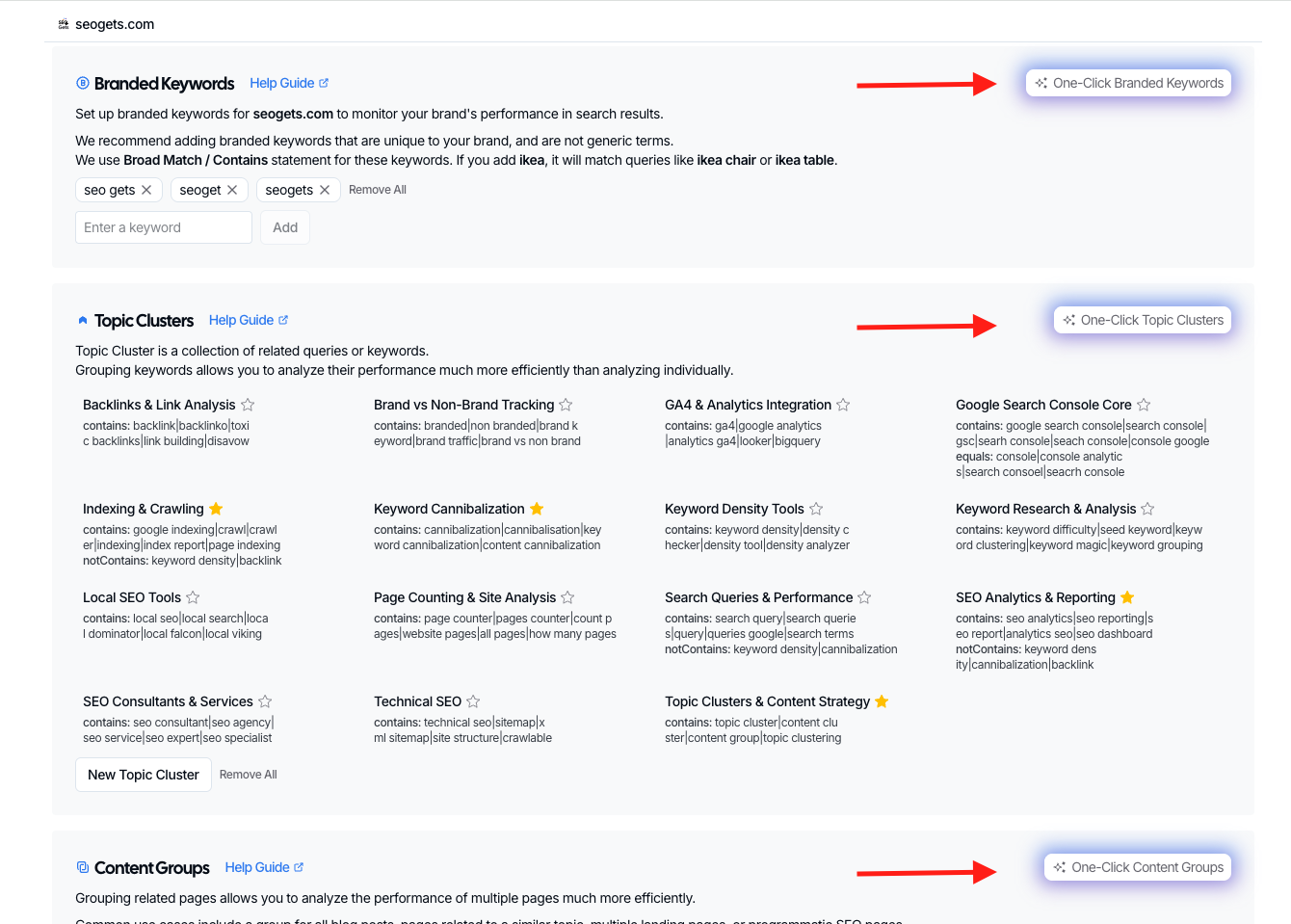
If you only need one piece of setup or want to build on top of your manually created content groups and topic clusters, you can do so from settings.
From your Master Dashboard, click on the site you want to configure.
Go to the Settings tab.
Scroll to the section you want to set up:
Branded Keywords — click One-Click Branded Keywords
Topic Clusters — click One-Click Topic Clusters
Content Groups — click One-Click Content Groups
Brand Summary — click One-Click Brand Summary
Review the same One Click Setup privacy and credit dialog, then click Start Setup or Buy Credits as needed.
When the individual scope finishes, you will see a scope-specific completion message. For example, if you ran topic clusters only, the message will be: Your topic clusters are ready.
Running an individual scope after the full setup, or running the full setup after individual scopes, can create duplicates. Pick one approach per site to avoid overlapping clusters or groups.
What if something goes wrong?
If the setup fails, you will see the message: Something went wrong during setup. Click Try again on the toast to restart the process. If your team does not have enough AI credits, the message will say: Your team doesn't have enough AI credits to run the setup. In that case, add credits from your team settings and try again.
Next steps
Link your GA4 property to see organic analytics alongside Search Console data
Explore your topic clusters and content groups in the Performance Report
Check the branded vs. non-branded breakdown to understand your brand's search visibility