
Update roles
Use roles to control who can manage your SEO Gets workspace. If someone's responsibilities change, you can update their access from your team settings to control which properties they can view, which features they can use, and how they contribute.
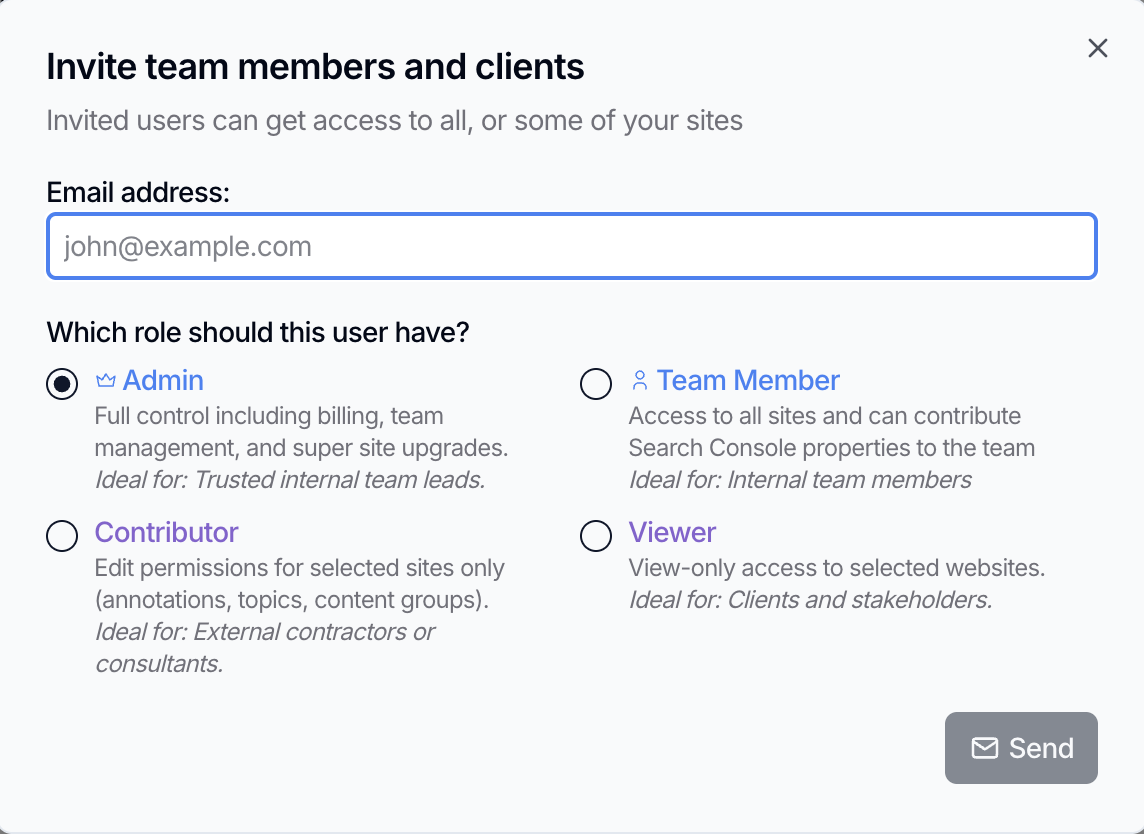
SEO Gets uses four roles: Admin, Team Member, Contributor, and Viewer. If you haven't invited the person yet, you can choose their role during the invite flow. See How do I add my team to my account?.
Update a teammate's role
Sign in to SEO Gets and navigate to Settings.
Go to Team.
Open Team Members.
Find the teammate you want to update.
Click the three dots to the left of their profiles to open the role selector.
Save your changes.
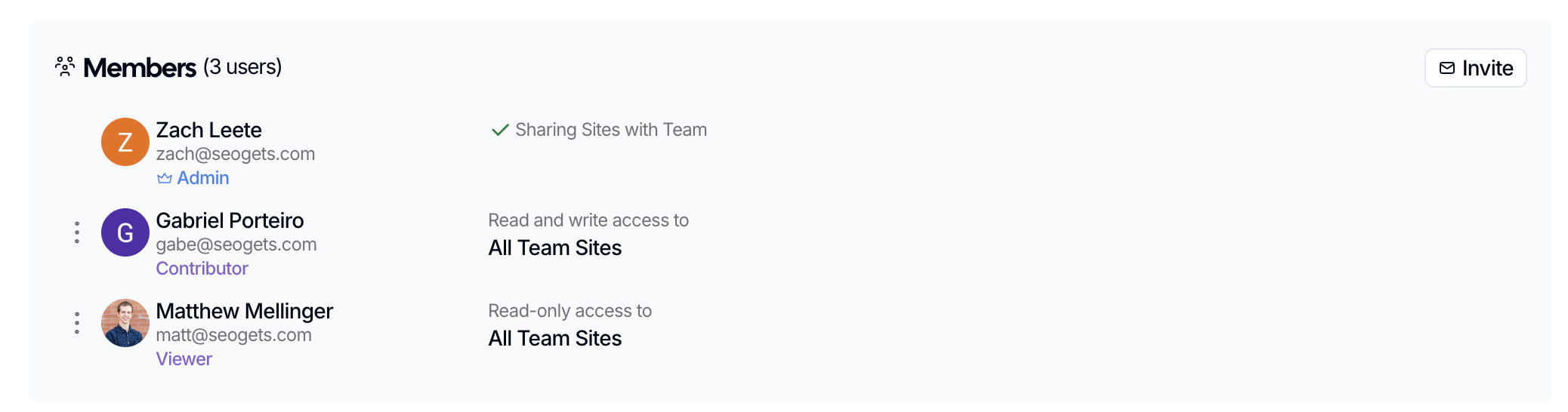
Admins and Team Members have access to all sites in your SEO Gets account. Contributors and Viewers can access all sites if allowed, or you can select specific sites for them to access. This is a great way to provide limited access to contractors and external stakeholders.
Choose the right role
Pick the role based on how much account control you want to grant. You can always update this later or temporarily enhance permissions to suit your needs.
What to do next
What to do when a team admin leaves
If your team's only admin has left, see Recover workspace access after a team member leaves for the recovery steps, including how to promote a new admin and rename the team.