
Unlink GA4 property
If you've connected Google Analytics 4 (GA4) to a site and want to remove it—whether you connected the wrong property, you're seeing data conflicts, or the GA4 filters are getting in the way—you can unlink it in a few clicks.
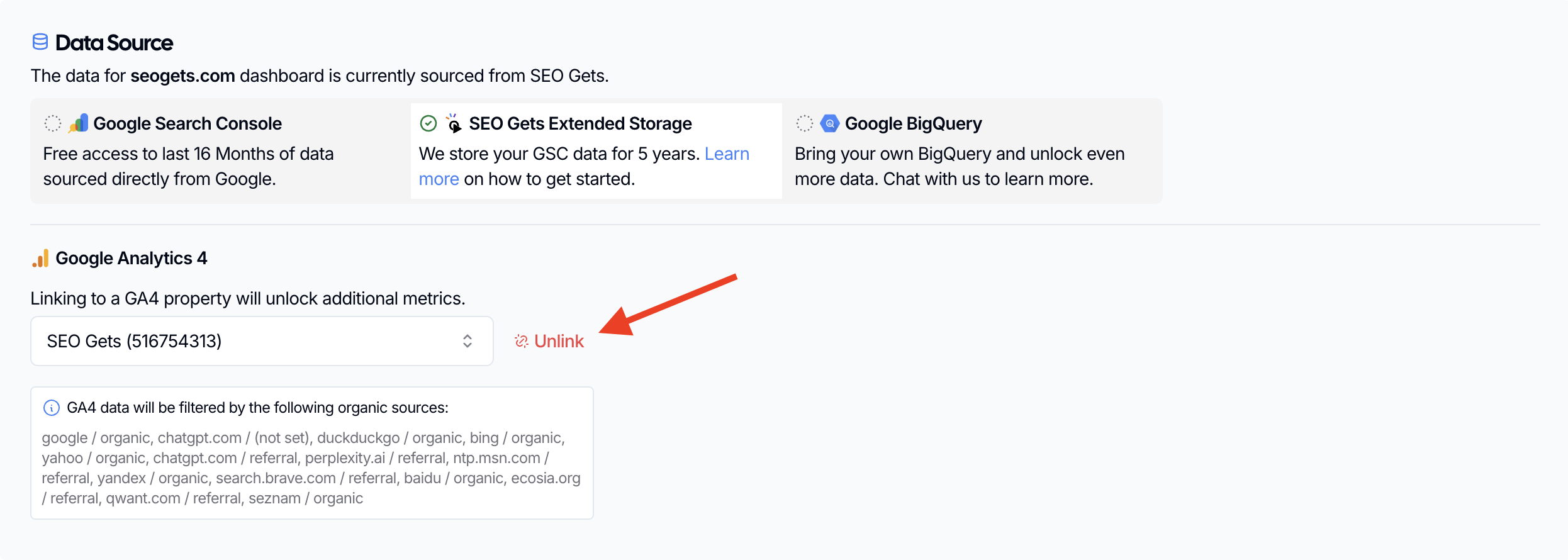
Unlink a GA4 property from your site
Open the site you want to manage
Click GA4 in the top navigation
On the Google Analytics 4 page, find the linked property
Click Unlink
The GA4 property is immediately disconnected from that property. Your GSC data remains untouched, and you can always relink the same property or a different one later.
Unlinking removes the GA4 property from this specific site only. It doesn't disconnect your Google account from SEO Gets or affect any other sites you've connected.
What happens after you unlink
GA4 metrics (sessions, engagement rate, key events, revenue) stop appearing in that site's dashboard
Any GA4-specific filters you applied are removed
Your Google Search Console data continues flowing normally—unrelated to the GA4 connection
If you had issues with the GSC API after linking GA4, unlinking should resolve them. The two connections operate independently, so removing GA4 won't affect your GSC setup.
If you want to relink later
You can connect the same GA4 property or a different one anytime. For step-by-step instructions, see Link GA4 property.
Disconnecting your Google account entirely
Unlinking a GA4 property is different from removing your Google account connection. If you want to disconnect your Google account from SEO Gets completely, that's a separate action in your account settings. For that, see How to delete your account.