
Invite team members
SEO Gets lets you invite admins, team members, contributors, and viewers, giving you full flexibility to provide coworkers, clients, consultants, and contractors with the appropriate level of access to your properties in SEO Gets.
Invite a team member
Open SEO Gets
Click on the user dropdown and select Settings
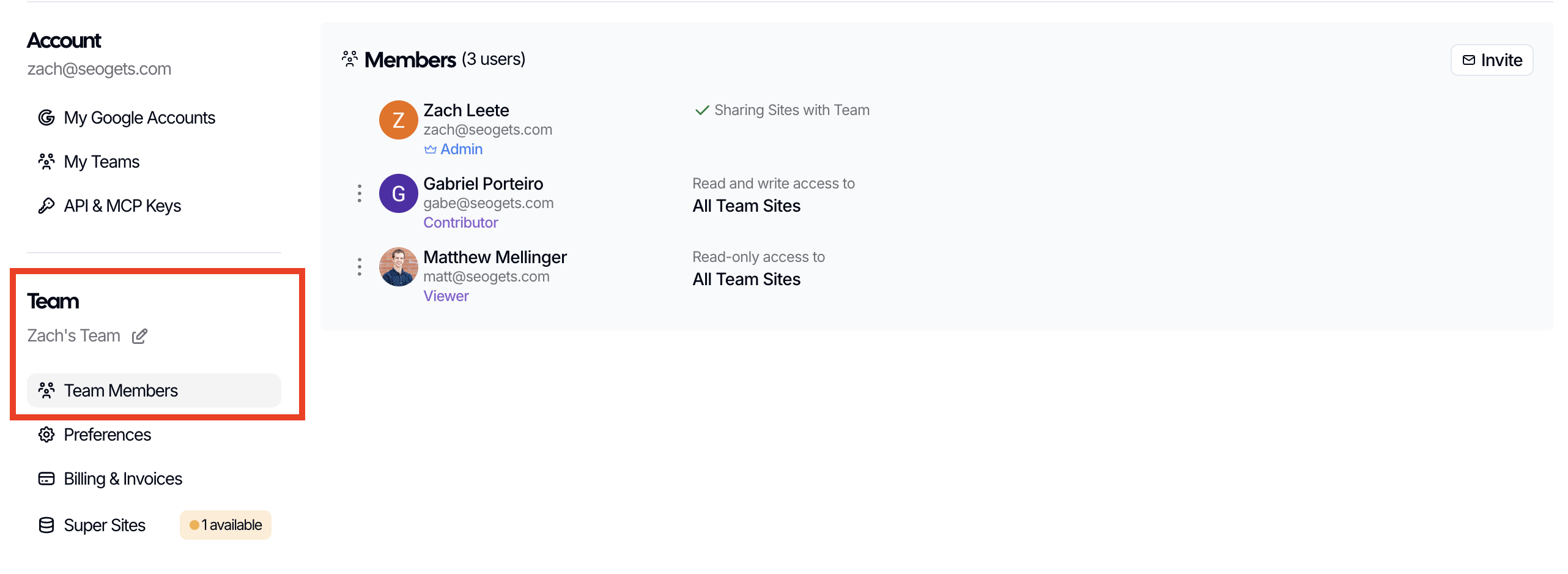
Go to Team → Team Members
Click the option to invite a new member
Enter their email address
Choose their role
Click Send
Once they accept, they'll join your workspace and get access to the same sites and shared reports.
What shared access means
SEO Gets is a shared workspace. When someone joins your team, they can see the sites already in that workspace (or the sites you've designated for them). If a teammate adds more sites later, those sites are visible to the whole team, too.
Choose the right role
Admin: full control including billing, team management, and super site upgrades.
Ideal for: Trusted internal team leads.
Team Member: access to all sites and can contribute Search Console properties to the team
Ideal for: Internal team members
Contributor: edit permissions for selected sites only (annotations, topics, content groups).
Ideal for: External contractors or consultants.
Viewer: view-only access to selected websites.
Ideal for: Clients and stakeholders.
If you're also connecting multiple Google accounts under one subscription, see Can I use one subscription for all my Google accounts?
Troubleshooting team invites
If a teammate says they never received the invite email, or they can not accept it, here is how to fix the most common problems.
The invite email did not arrive
Ask the teammate to check their spam or junk folder.
Double-check that you sent the invite to the exact email address they use for their Google Account.
In Team → Team Members, look under Pending Invites. If the invite is still there, cancel it and send a new one. SEO Gets does not have a resend button, so cancelling and re-sending is the fastest way to get a fresh invite.
The teammate can not sign in to accept
When a teammate clicks Accept Invitation in the email, they must sign in with the exact Google Account that matches the invited email address. If they try a different Google Account, they will see an error telling them to use the invited email.
If they do not have access to that Google Account, ask them which Google Account email they want to use, then cancel the pending invite and send a new one to that address.
The invite link says it is no longer valid
If the recipient sees "This link is no longer valid. Contact who shared it with you," the invite was probably cancelled or expired. Cancel any pending invite for that person and send a fresh one.
Still stuck? If you are the only admin and you have lost access to team management, see Recover workspace access after a team member leaves for next steps.