
Connect your Google account
Connect the Google account that already has access to your Search Console or GA4 properties, then grant SEO Gets read-only access. Once the connection is approved, you'll land in your dashboard and can start analyzing your data.
Connect your account
Go to the SEO Gets login page.
Click Sign in with your Google account.
Select the Google account you want to use.
Review the access request, then approve it.
Wait for SEO Gets to open your Master Dashboard.
Connect the Google account you use to access and manage Google Search Console and/or Google Analytics 4. SEO Gets will only grant access to your linked accounts.
Verify that your accounts are connected
Your connected accounts are visible in the Your Account section of My Google Accounts. Look for the "Connected" designation next to each property to verify that your accounts were connected successfully.
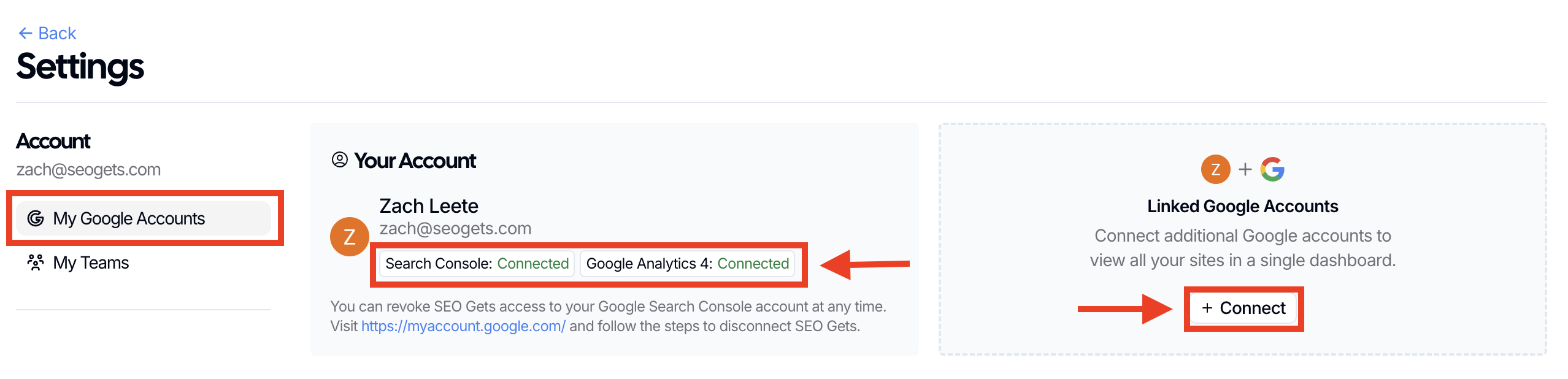
If you manage multiple Google accounts, you can add additional accounts from the platform by navigating to Settings → My Google Accounts.
What happens next
After you connect your account, SEO Gets can show your Search Console and GA4 data in one place. The connection is read-only, so SEO Gets can view data but can't make changes to your Google properties.
For detailed guidance on connecting and troubleshooting GA4 data specifically, see Connect Google Analytics 4 data.
If your data doesn't appear
Make sure you signed in with the Google account that has access to the Search Console property or GA4 property you are connecting to SEO Gets.
Check whether your browser blocked the Google sign-in pop-up.
Confirm that you've already been granted access in Google before you try again.
Once you're connected, you're ready to start exploring your dashboard and reports.