Connect SEO Gets to Claude through a custom connector and chat with your SEO data on the web, desktop, or mobile—no config files or Node.js required.
MCP requires a paid plan. As of July 2026, MCP access is limited to Core and Pro plans. If you're on the Free plan, you'll see a message asking you to subscribe before the MCP tools will run. Compare plan options or upgrade from Billing settings.
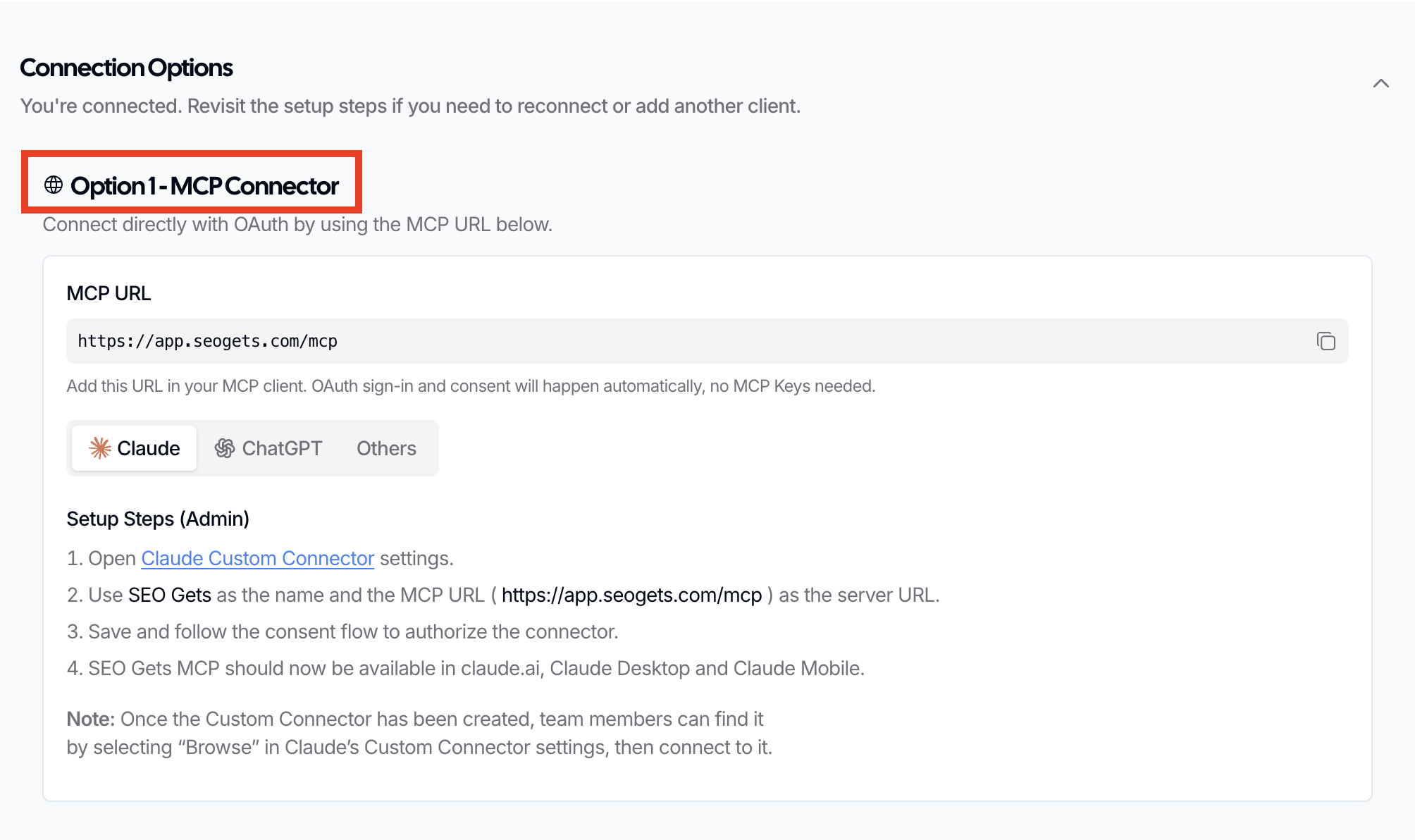
Option 1: Connect SEO Gets to Claude
Admin users can set up the SEO Gets MCP connector in Claude's settings. Once created, team members can connect to it through Claude's browse feature.
Use SEO Gets as the name and https://app.seogets.com/mcp as the server URL.
Save and follow the consent flow to authorize the connector.
SEO Gets MCP should now be available in claude.ai, Claude Desktop, and Claude Mobile.
Connect to an existing SEO Gets connector
If your team admin already created the SEO Gets connector, you don't need to set it up again. Instead, you connect to it through Claude's Browse feature.
Select Browse to find connectors shared with your team.
Find SEO Gets in the list and connect to it.
Complete the consent flow if prompted.
Once connected, SEO Gets appears in your available connectors alongside any others your team uses.
Verify your connection
After setup, ask Claude a specific question about your SEO Gets data. For best results, include your exact property name:
"Using my SEO Gets data, show me top pages for example.com last month."
If Claude doesn't automatically use SEO Gets, go to Settings → Customize in Claude, find SEO Gets under the connector list, and set each tool to Always Allow. You still need to reference SEO Gets explicitly in your prompts.
Troubleshooting
The connector doesn't appear in Claude
If SEO Gets isn't showing up after setup:
Check your plan. MCP is only available on Core and Pro plans. Free plan users will see a subscription prompt instead of the connector.
Complete the consent flow. Make sure you finished all authorization steps after saving the connector.
Check your network. If you're behind a corporate firewall or VPN, the connection may be blocked. Try from a different network to rule this out.
Claude shows the connector but doesn't use SEO Gets
If SEO Gets is listed but Claude still doesn't query your data:
Be specific in your prompt. Claude won't automatically route every question through SEO Gets. Try: "Using my SEO Gets data, show me top pages for example.com last month" or "What are my striking distance keywords according to SEO Gets?"
Set permissions to Always Allow. Go to Settings → Customize, find SEO Gets, and set each tool to Always Allow. This removes approval prompts, but you still need to reference SEO Gets in your prompt.
I see a message saying I need a subscription
MCP access requires a paid plan. If you're on the Free plan, you'll see a subscription message when the MCP tools try to run. Upgrade to a Core or Pro plan to restore access. You can change your plan from Billing settings.
Remove an old SEO Gets connector before reinstalling
Claude doesn't let you edit a connector directly — you remove the old one and add it again with updated details. That's why an old local or remote SEO Gets entry can block a fresh install.
Remote connector: In Claude, go to Customize → Connectors, find SEO Gets, and choose Remove from the three-dot menu. Team owners remove organization-level connectors from Organization settings → Connectors.
Old manual local setup: If you configured SEO Gets through the manual Claude Desktop method, the connection lives in claude_desktop_config.json under mcpServers. Delete the SEOGets block, save the file, and quit and restart Claude Desktop completely for the change to take effect.
Then add the connector again with the name SEO Gets and server URL https://app.seogets.com/mcp, and complete the consent flow.
I can't add the Custom Connector because I'm not the team owner
In Claude Team and Enterprise organizations, only the Owner or Primary Owner can add a custom connector. If adding SEO Gets fails for you, have your team owner install it.
Ask the owner to open Organization settings → Connectors, click Add → Custom → Web, and enter SEO Gets with server URL https://app.seogets.com/mcp.
Once it's added, connect to it yourself from Customize → Connectors using Browse, as described in the Connect to an existing SEO Gets connector section above.
Each team member authorizes the connector individually through the consent flow.
The consent step fails or I see an error
The consent step signs you into SEO Gets and asks you to approve access, and it only approves the connector you just added.
Sign in to SEO Gets first. The consent step redirects to SEO Gets sign-in before showing the approval screen, so sign in and let the flow continue.
Approve only fresh prompts. If you see a consent prompt at any other time than right after adding the connector, don't approve it — remove and re-add the connector instead.
Retry after an error. If you see "Something went wrong. Please try again.", open the Custom Connector settings again and repeat the save and consent steps.
My connection worked before but stopped
When a working connector stops, check the plan, the property, the connector's conversation status, and the network — in that order.
Check your plan. The MCP server refuses requests when your SEO Gets team is on the Free plan. If your subscription lapsed, renew it and try again.
Check the property. Ask with your exact property name, like "show me top pages for example.com last month". If Claude says you don't have read access or no property matches, check your Google connection and property permissions in Why can't I see my GSC data even with permissions granted?
Re-enable the connector for the conversation. Claude activates connectors per conversation. Open the + menu, choose Connectors, and make sure SEO Gets is enabled with its tools set to Always Allow.
Check the network. The connector runs from Anthropic's cloud and must reach https://app.seogets.com/mcp. A corporate firewall or VPN can break a working connection, so try from a different network.
If Claude itself shows a connector error, the issue is on Claude's side: remove SEO Gets in Customize → Connectors and add it again with the same name and URL, then complete the consent flow.
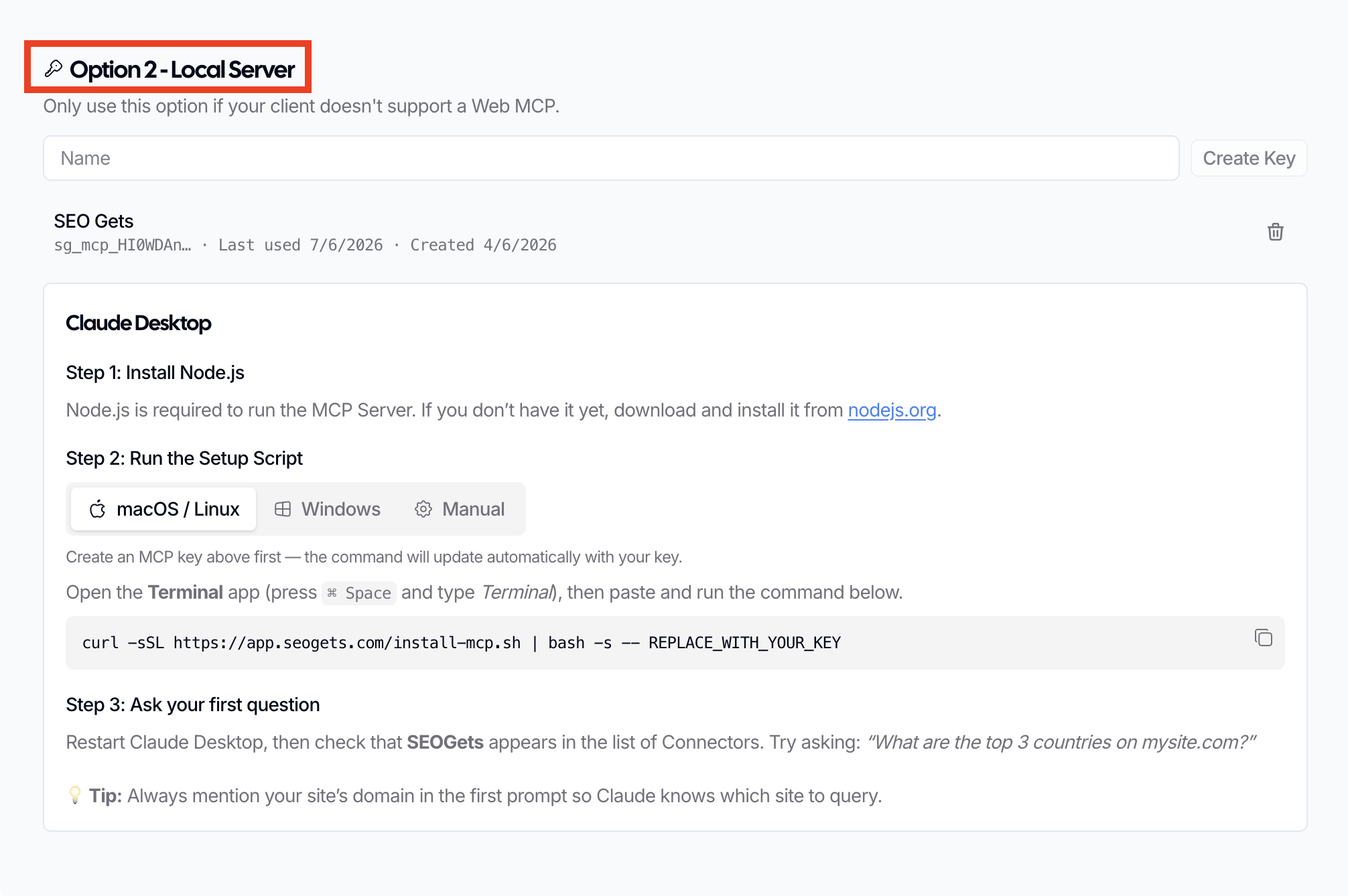
Option 2: Manual setup for Claude Desktop
If you prefer a manual setup or use an AI client that doesn't support custom connectors, you can configure SEO Gets MCP using a config file and Node.js. In the MCP menu, this is labeled as "Option 2 - Local Server." You will need to click "Show Instructions" to reveal the MCP Key generator.
Manual setup steps and troubleshooting
This method requires Node.js and manual editing of Claude Desktop's configuration file.
Once your key is generated, click Copy and paste it somewhere safe as it won't be shown again.
Step 2: Install Node.js
Install Node.js, which is required to run the MCP server. If you don't have it yet, download and install it from nodejs.org.
Windows users: After installing Node.js, restart your computer so PATH changes take effect. Then open a new terminal and run npx --version to confirm Node.js is ready. If you see "command not found," reinstall Node.js and make sure Add to PATH is checked during installation.
Step 3: Configure Claude Desktop
Open the configuration file directly from Claude Desktop:
Click Claude in your menu bar (macOS) or go to the app menu (Windows)