
How to automate site index monitoring
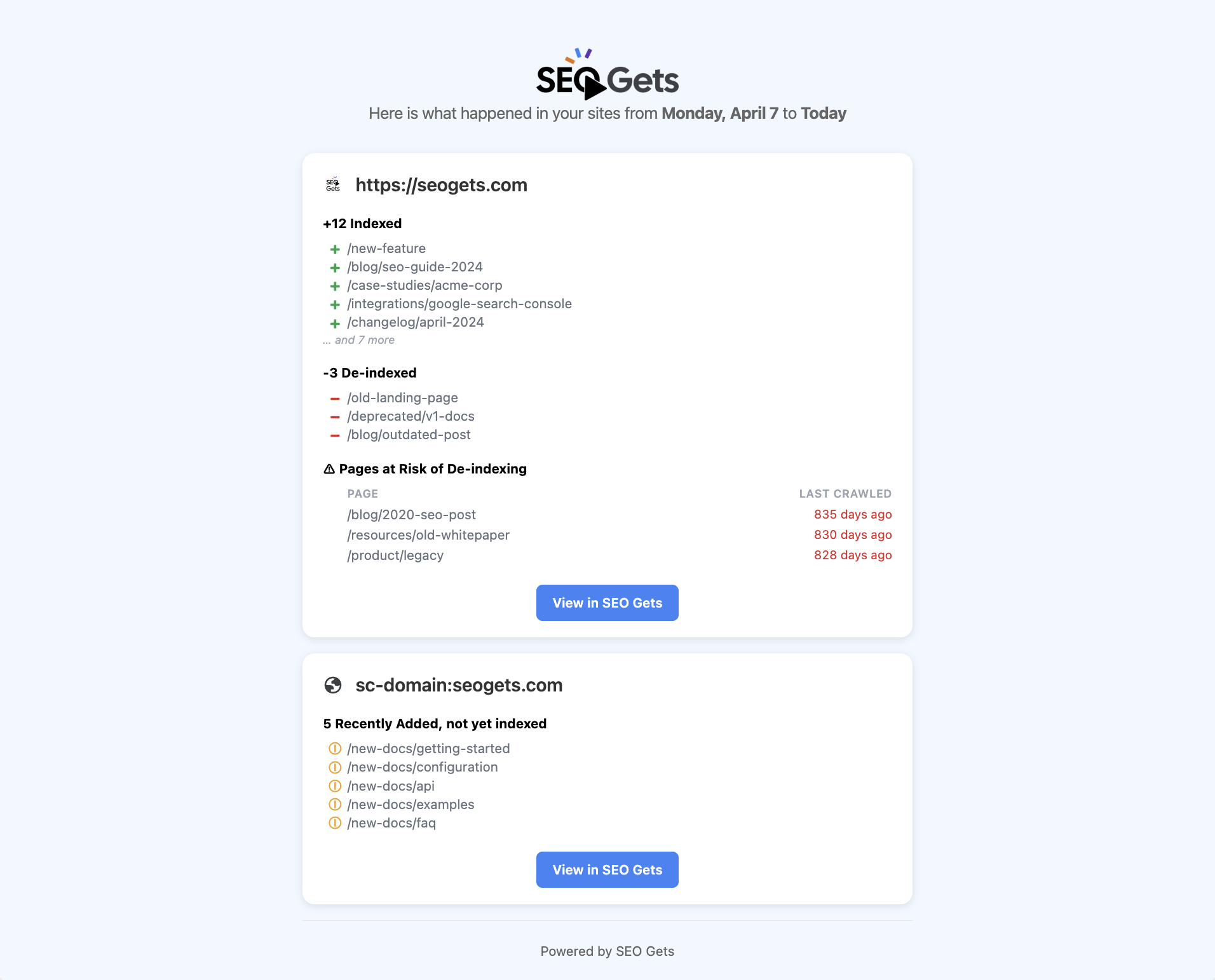
SEO Gets can send you a weekly email with your site's index health so you don't have to check manually. Weekly Indexing Report emails show which pages are indexed, which aren't, and how your index coverage is trending over time.
Weekly indexing report emails requires a Super Site.
Step 1: Set up Index Reporting
Before you can receive weekly emails, you need to tell SEO Gets which pages to monitor. This is done through Index Reporting.
Open the site you want to monitor
Go to Settings → Super Site Page Selection
Paste your sitemap URL(s) — use the XML sitemap served at the domain level for best results
Click Validate Sitemaps
Click Save
Each Super Site can track up to 5,000 pages. If your site is larger, prioritize your most important sitemaps or consider adding another Super Site for subfolders or subdomains.
Index Reporting will begin processing your pages. Initial setup can take 24–72 hours depending on queue load and sitemap size. If progress seems stuck, see Index Reporting stuck at 0% or showing unexpected counts for troubleshooting.
Step 2: Enable weekly email notifications
Once Index Reporting is set up, turn on the weekly emails:
Navigate to Settings
Under the Team menu, click Email Notifications
Toggle on Weekly Indexing Report
Your preference saves automatically — you'll continue receiving weekly updates until you turn it off.
What you'll see in the email
The weekly email gives you a snapshot of your index health:
Indexed pages — how many of your tracked pages are currently in Google's index
De-indexed pages — pages that aren't indexed, which may need attention
Pages at risk of de-indexing — pages that are indexed but are no longer being crawled
This automated system ensures that you catch index issues early without manually checking Google Search Console every week. If you see a sudden drop in indexed pages, you'll know right away and can investigate before it impacts traffic.
What to do next
To understand when your index data refreshes and how sitemap selection affects what gets tracked, see Index Reporting timing, inspection states, and page limits.