
Export data as CSV
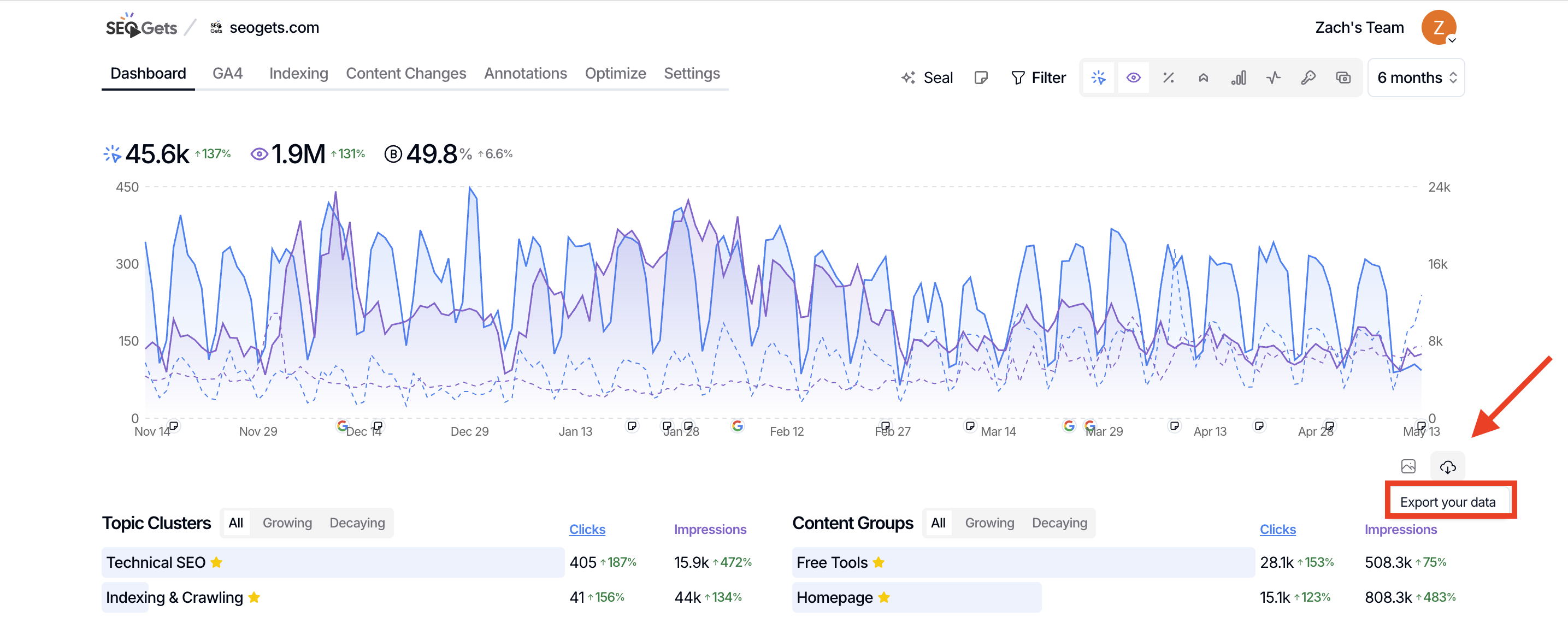
Yes, you can export GSC and GA4 data from SEO Gets. Just set your date selector to the range you want, then click Export Your Data.
How to export your data
Open the dashboard or report you want to export.
Click the date selector at the top of the page to set your date range.
Apply any filters you need.
Click Export Your Data to download your data.
The CSV reflects exactly what you see on screen — it respects your current date range and any filters you've applied.
Types of Exports
There are two types of exports in SEO Gets: Basic Exports (specific reports/sections of the dashboard) and Advanced Exports.
Basic Exports
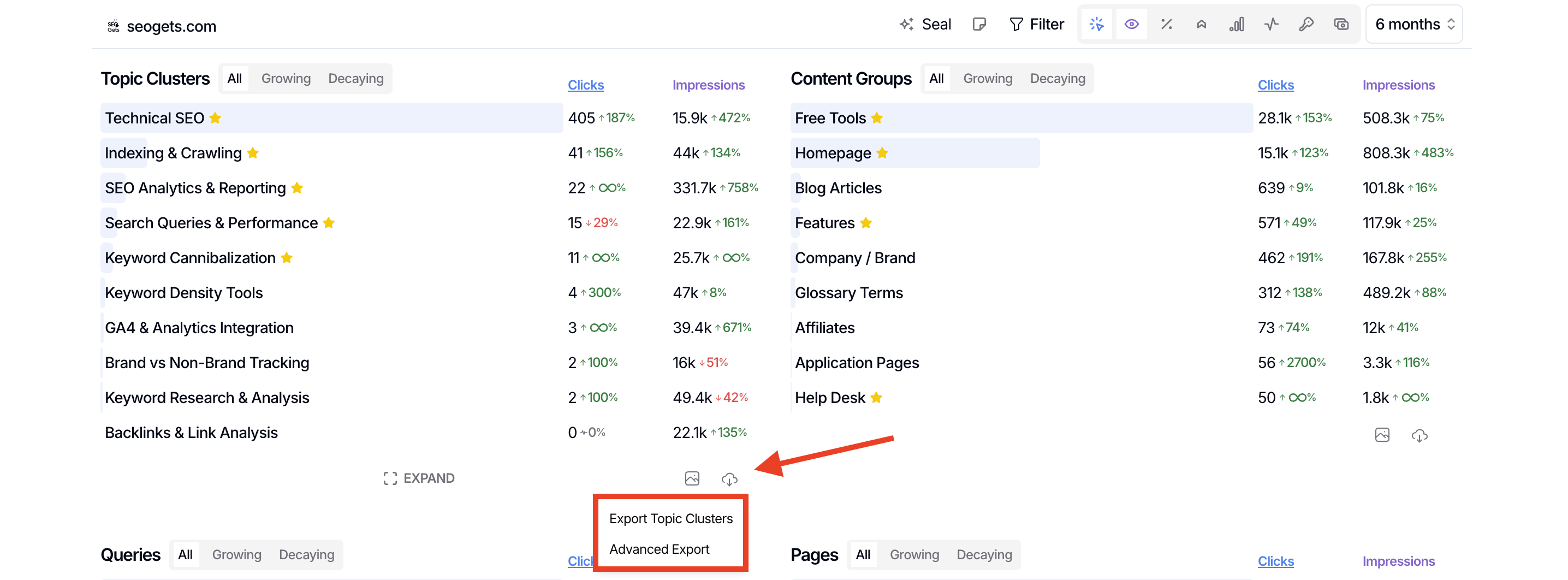
Basic exports allow users to export a specific section of their dashboard, such as Topic Clusters, Content Groups, Queries, Pages, Source/Medium, and more. These exports tend to be smaller in scope and focus on one particular element of your SEO Gets dashboard. When clicking on Export Your Data, you will be given the option of exporting the current section of the dashboard that you're on or an advanced export.
Advanced Exports
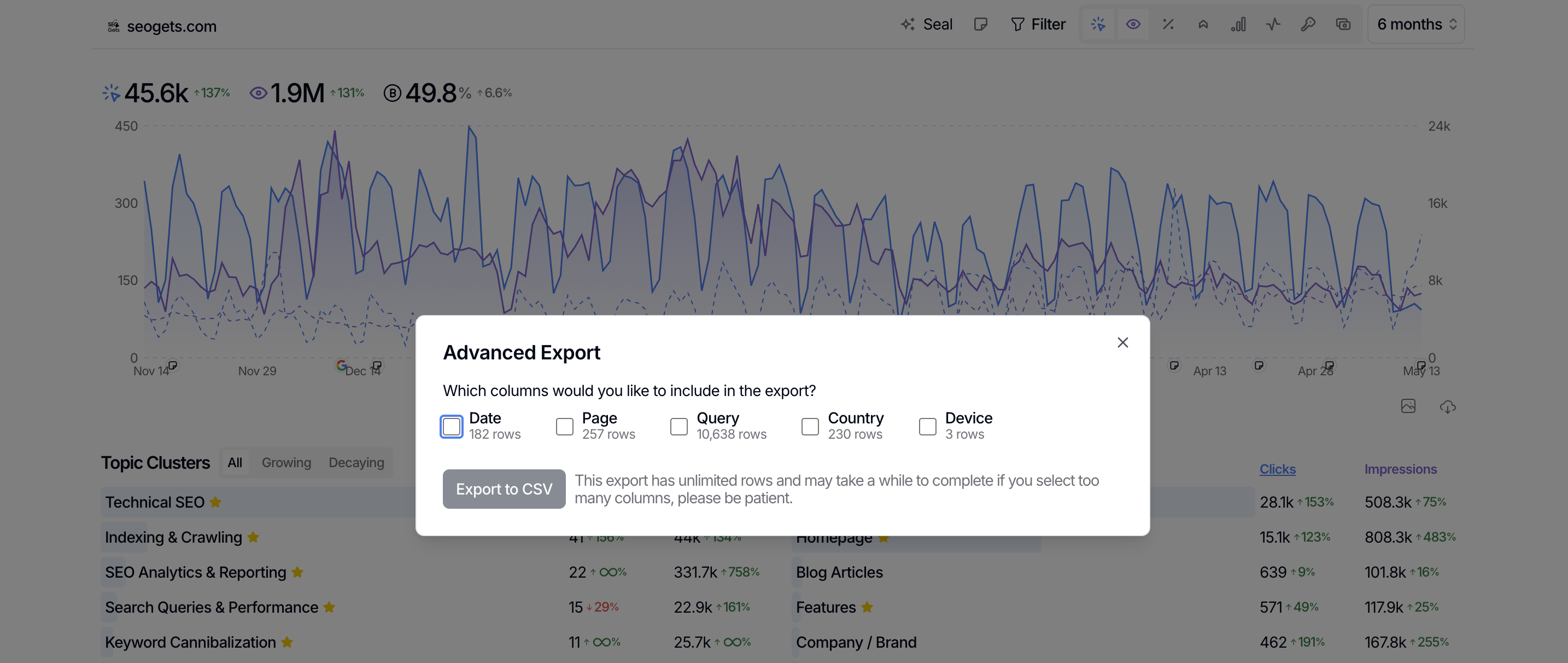
Advanced exports pull from all of your data. This type of export is more robust. You can choose which metrics you'd like to include and you can export data from your entire website in a single export.
Data limits to know
Google Search Console data: GSC keeps up to 16 months of historical data. You can export any range within that window.
Extended history: If you have Super Sites enabled, you can store and export up to 5 years of data.
Row limits: SEO Gets shows up to 50,000 rows per export — far more than GSC's native 1,000-row limit.
Troubleshooting export mismatches
If your exported numbers don't match what you see on screen—or don't match what you expected—see Why your export counts might not match the dashboard. It covers the most common causes:comparison mode shifts, annotation effects, date picker limits, and differences between GSC and SEO Gets data.
If you are unsure how far back your data goes or why older data has disappeared, see How far back does my Google Search Console data go?.