
New rankings
The New rankings view shows you keywords or pages that started appearing in search results during your selected time frame—terms that had zero impressions in the previous comparison period but are now getting visibility. It's a quick way to spot fresh opportunities, understand the impact of recent content, and track indexing success.
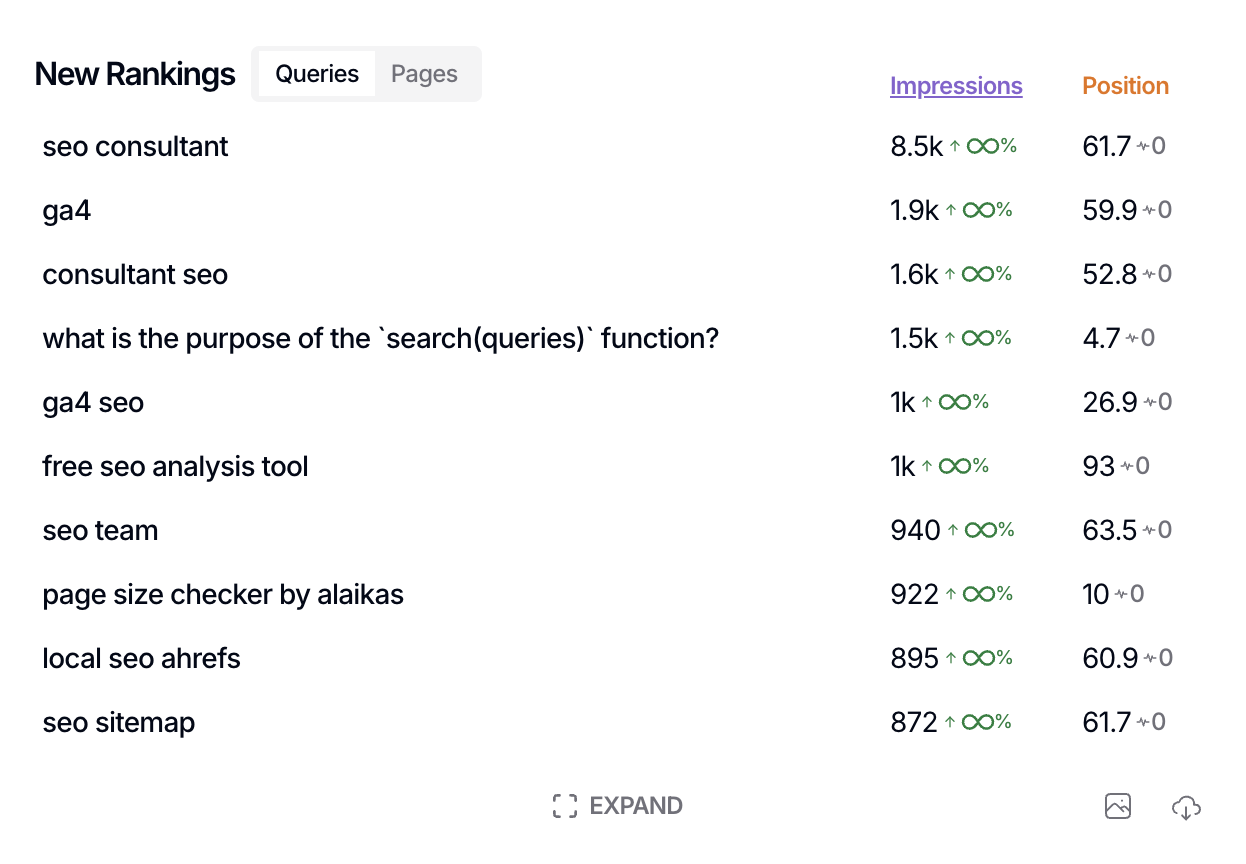
How to access the New rankings view
Open the property you want to analyze from your master dashboard.
Scroll down to the New Rankings section on the property dashboard.
Use the dropdown at the top of the section to switch between Queries (keywords) and Pages.
The New rankings view isn't available when you're filtering by Discover search type—it only applies to web search data.
What counts as a new ranking
A keyword or page qualifies as "new" when it had zero impressions in the previous comparison period but started getting impressions in your current date range. This means SEO Gets compares two time periods side-by-side—anything with no visibility before but some visibility now shows up here.
The default sort is by impressions (highest first), so the terms getting the most traction appear at the top.
Metrics you'll see
For each new ranking, you'll see standard Google Search Console metrics. These can be toggled on/off.
Clicks — How many people clicked through
Impressions — How often it appeared in search
CTR — Click-through rate
Position — Average ranking position
When to use New rankings
This view is useful for a few common scenarios:
Content launch monitoring — After publishing new content, check new rankings to see if Google has started surfacing it for any queries. This tells you indexing is working and reveals which search intents your content is matching.
Competitive gap discovery — New rankings can surface queries you didn't expect to rank for. These might be terms your competitors target, or emerging search trends you hadn't considered.
Tracking indexing success — If you've submitted new pages or updated existing ones, new rankings confirms they're getting impressions—not just indexed, but actually appearing in search results.
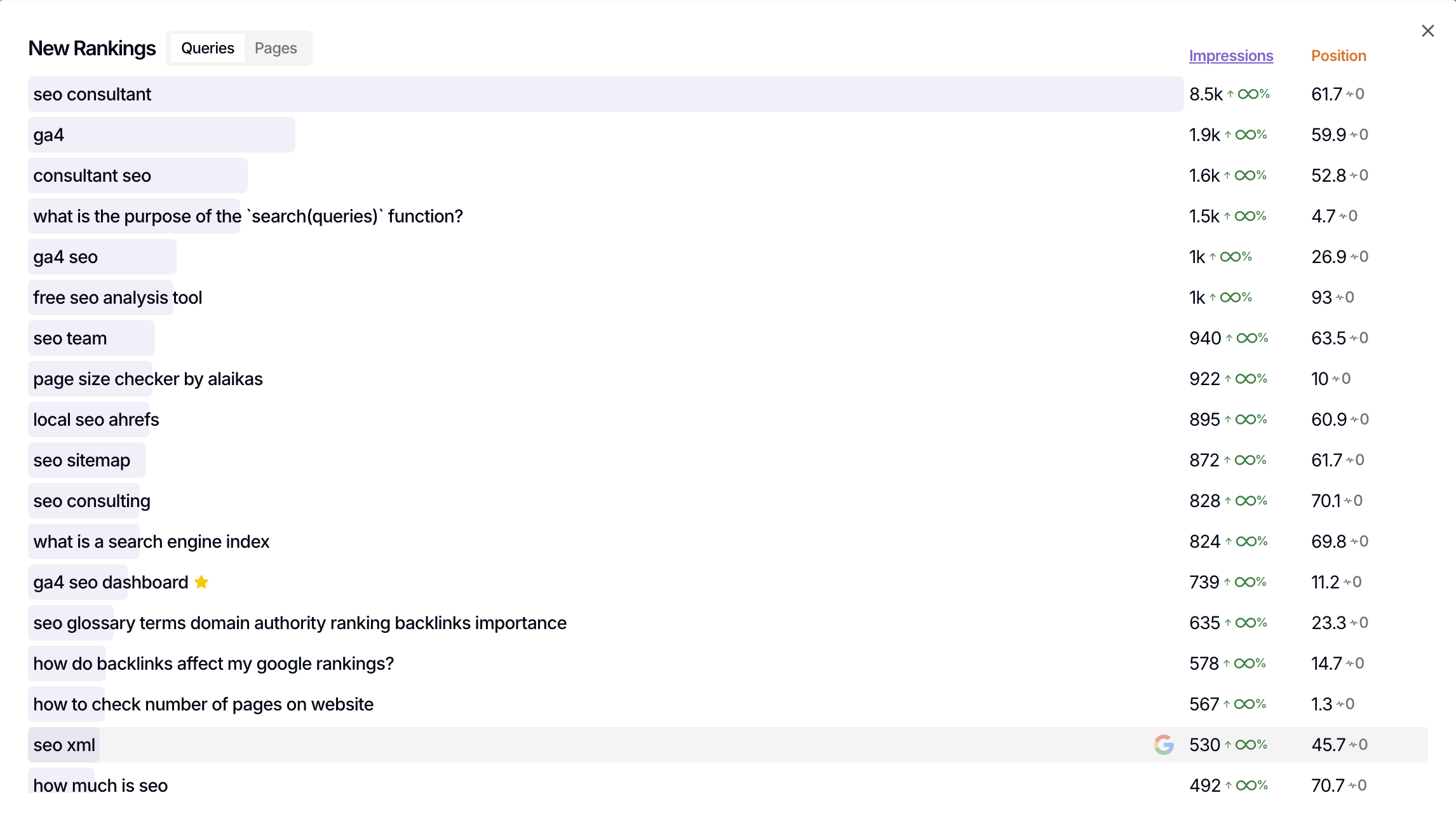
Evaluating priority performance — new rankings that belong to one of your priority groups or clusters will be marked with a star in this view.
Dig deeper with the expanded view
Click Expand in the section footer to open a larger table view. This lets you scroll through more results, adjust columns, and use the Export New Rankings button to download the data for further analysis.
What's next
Once you've identified new ranking opportunities, add them to your prioritization plan to decide which ones deserve content updates, new pages, or deeper investigation.