Switch your SEO Gets dashboard to pull data from BigQuery instead of Google Search Console for access to up to 50,000 rows per request—50x more than GSC's 1,000-row limit. This is ideal for large sites or anyone who needs deeper query-level data.
BigQuery integration requires Google Search Console's Bulk Data Export feature to be set up first. This sends your GSC data to BigQuery daily, where SEO Gets reads it.
How it works
When you connect BigQuery, SEO Gets reads your GSC data from your BigQuery dataset instead of pulling directly from the GSC API. You get:
More data — Up to 50,000 rows per request versus GSC's 1,000-row cap
Faster queries — BigQuery handles large datasets without timing out
Better performance — Dashboard stays snappy even with hundreds of thousands of pages
SEO Gets maintains a read-only connection to your BigQuery data—your data stays in your Google Cloud project, and nothing is stored on SEO Gets servers.
Step 1: Set up GSC Bulk Data Export
Before connecting BigQuery to SEO Gets, you need Google Search Console's Bulk Data Export sending data to BigQuery.
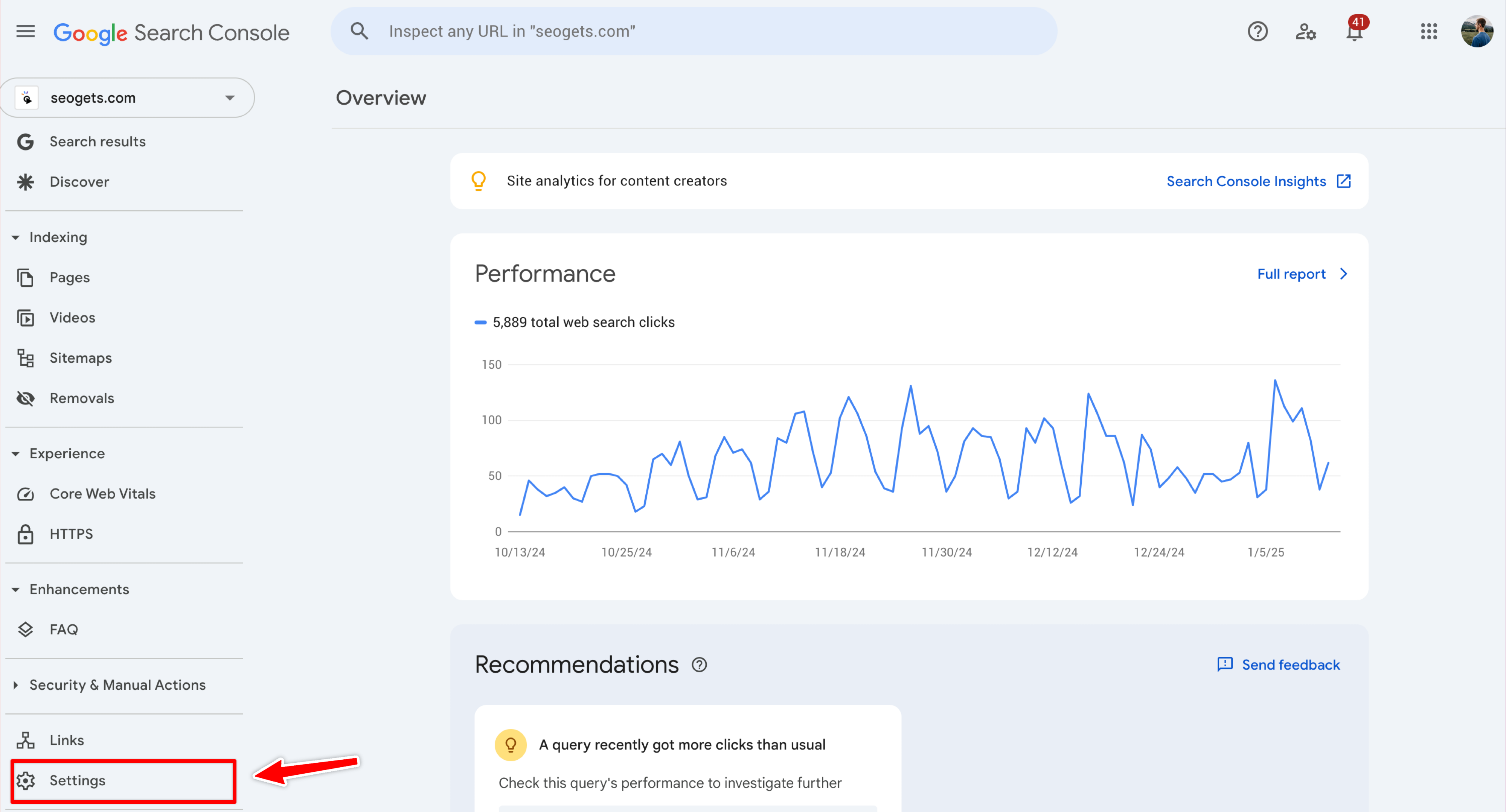
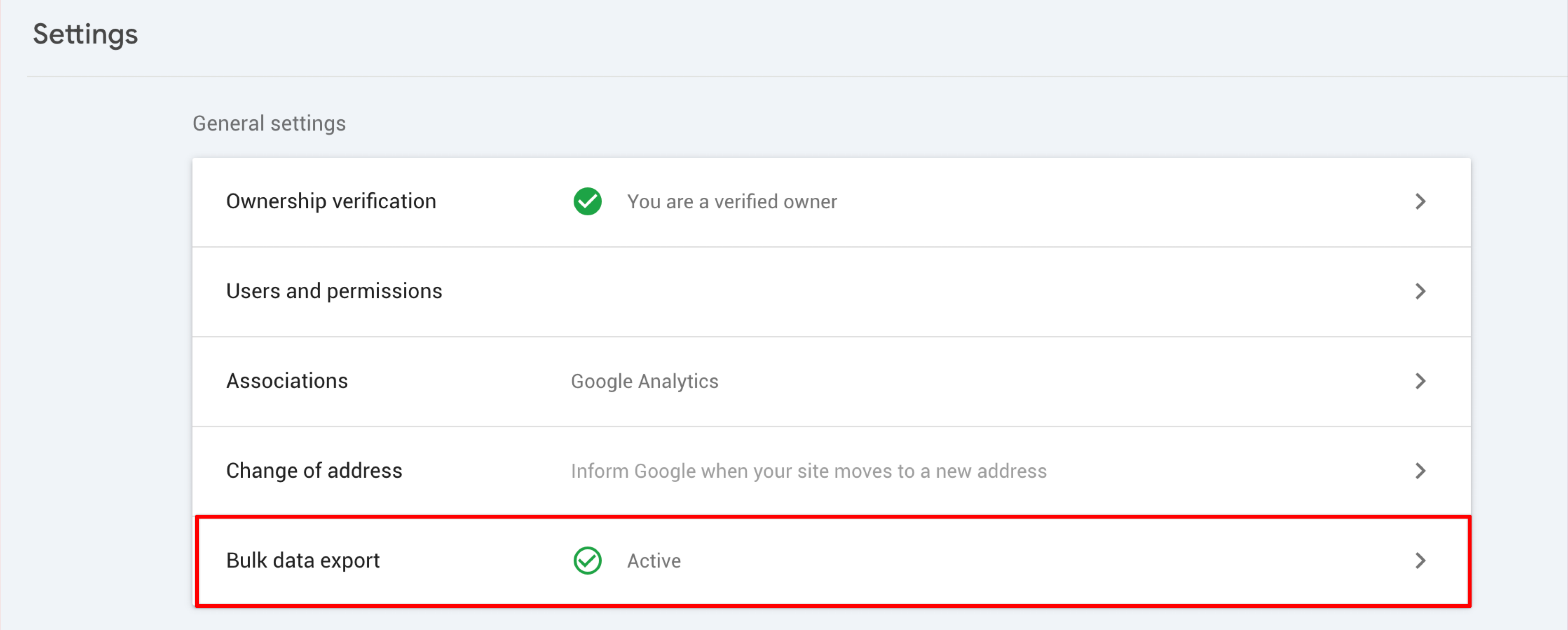
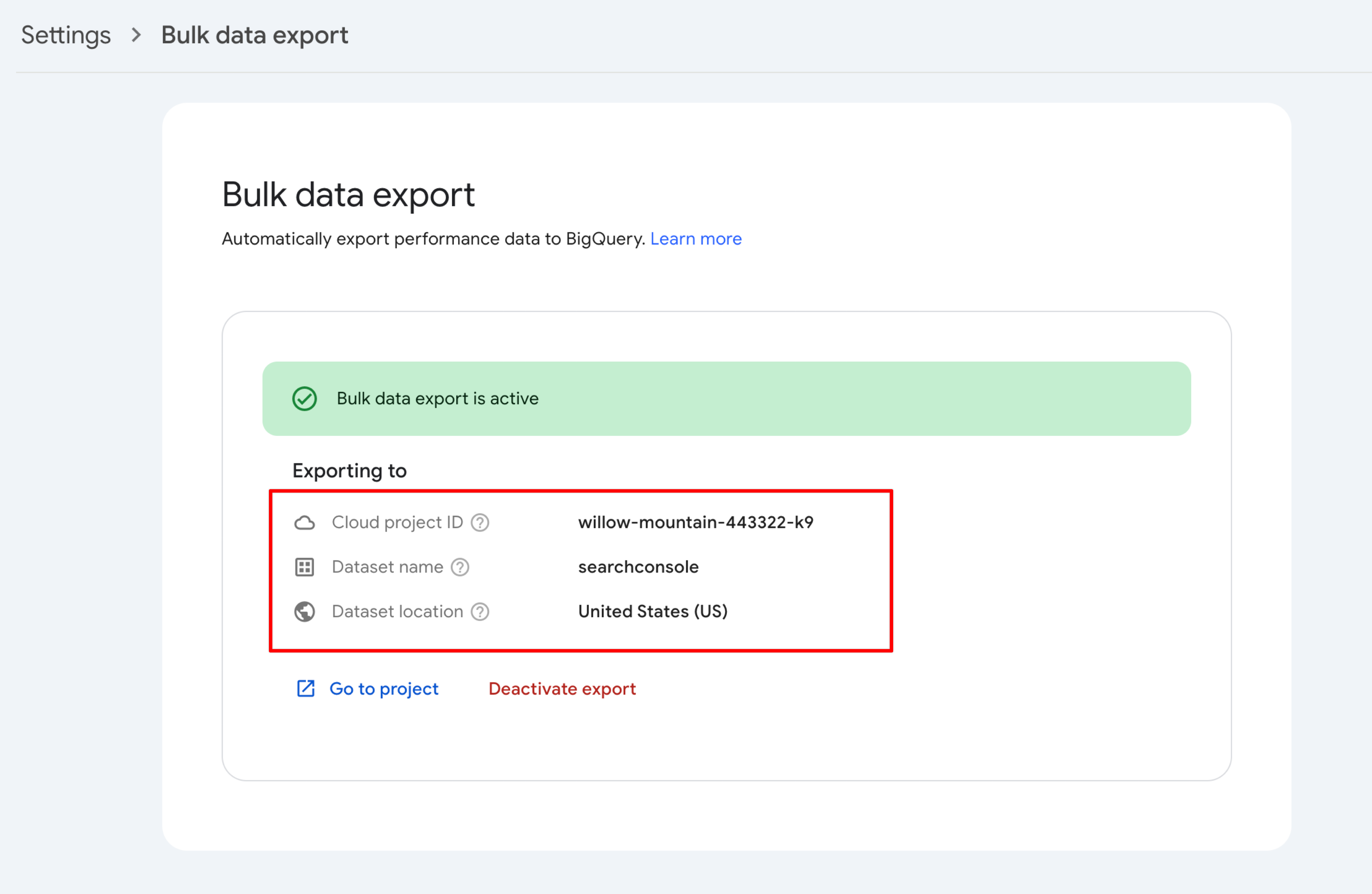
Open Search Console and go to Settings → Bulk data export
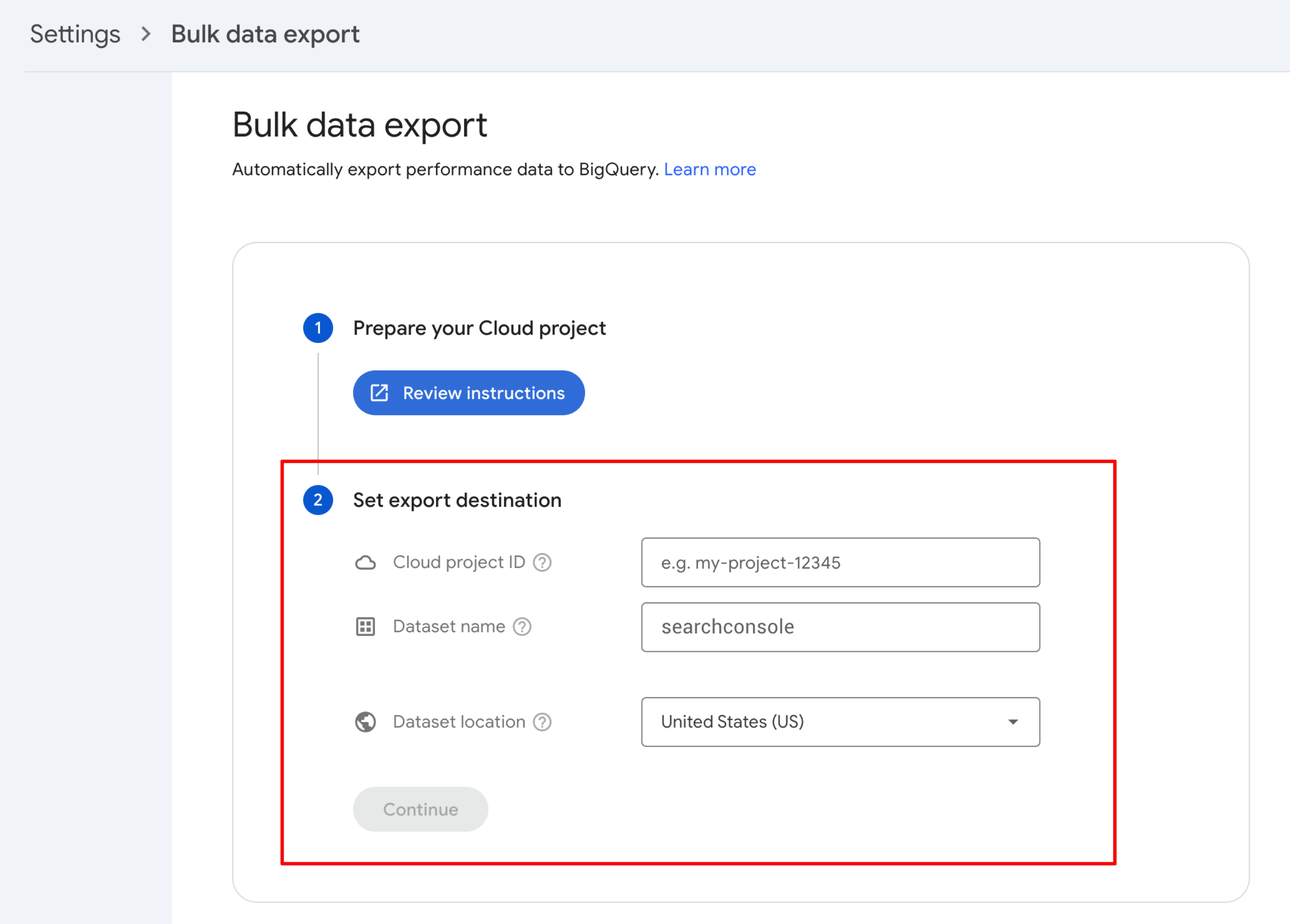
Follow Google's instructions to set up a Cloud Project and configure the export destination
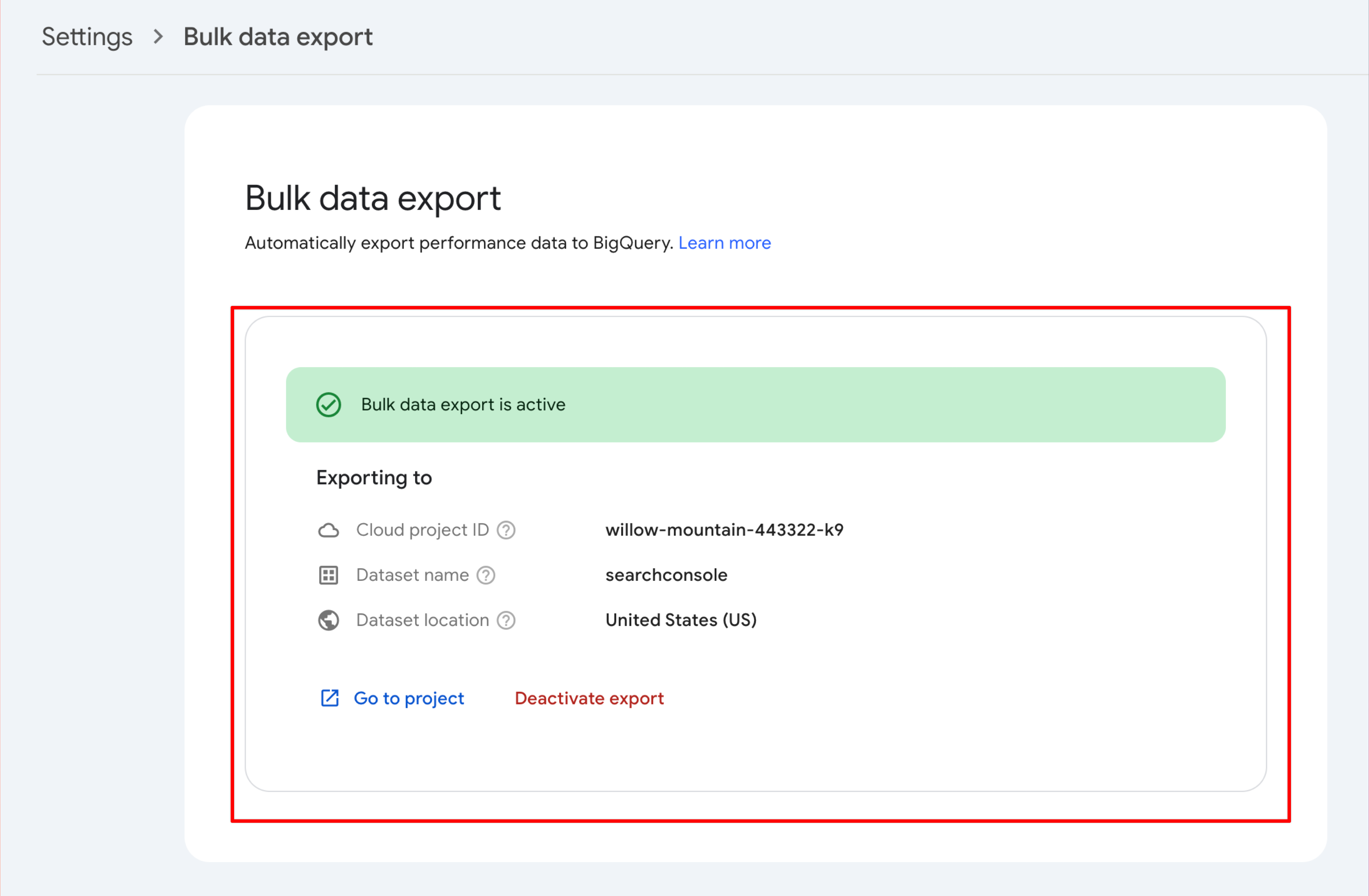
Wait until the export status shows active
Bulk Data Export starts collecting from day one and does not backfill the prior 16 months of GSC history. If you need extended historical data, check out extended storage.
Step 2: Grant SEO Gets access to BigQuery
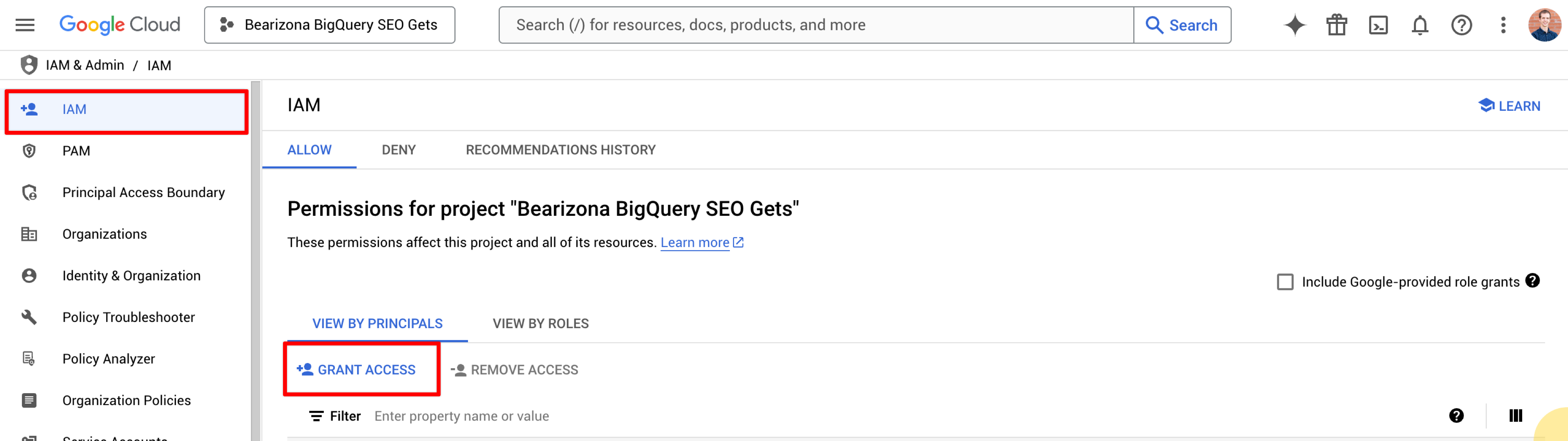
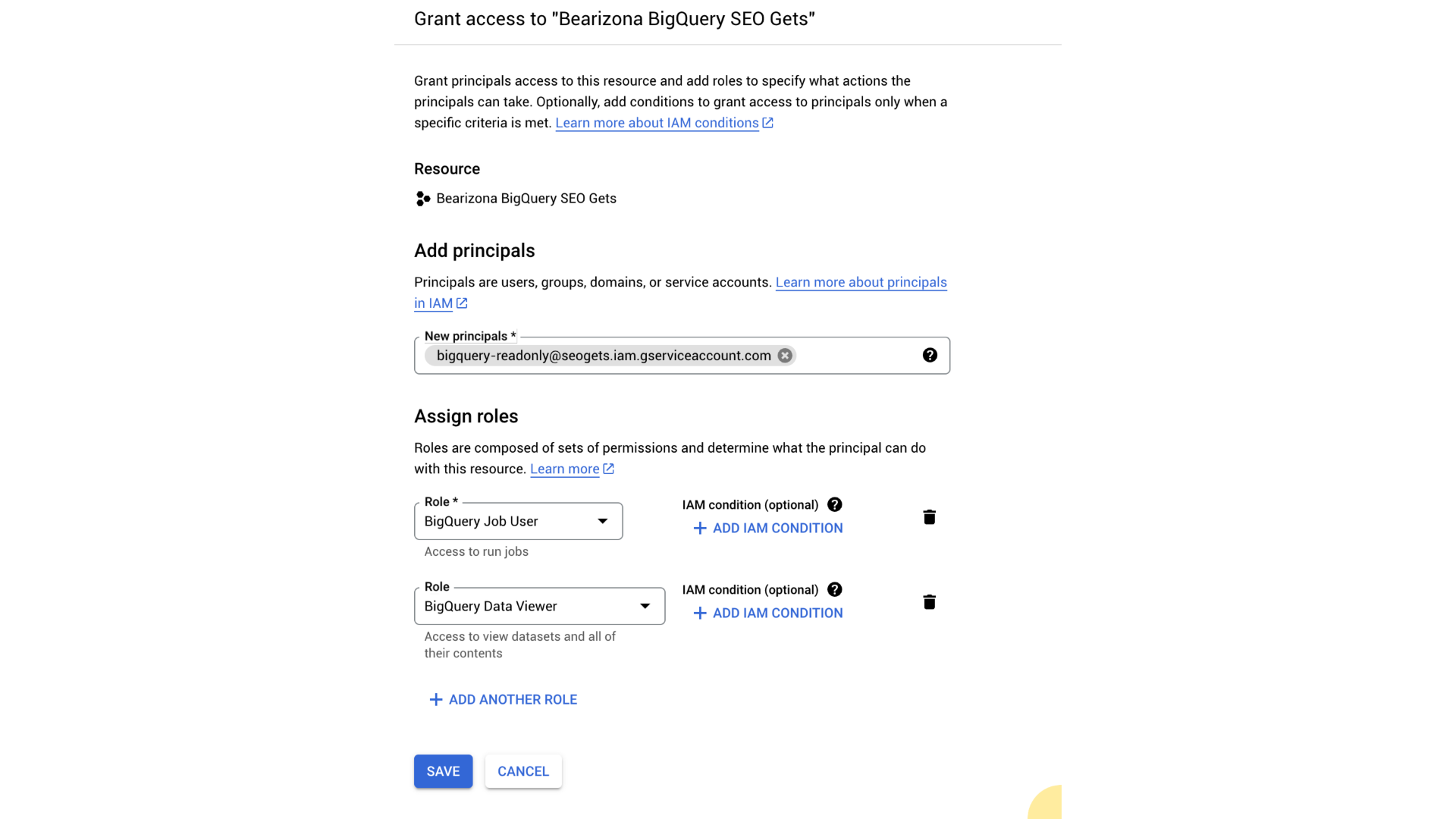
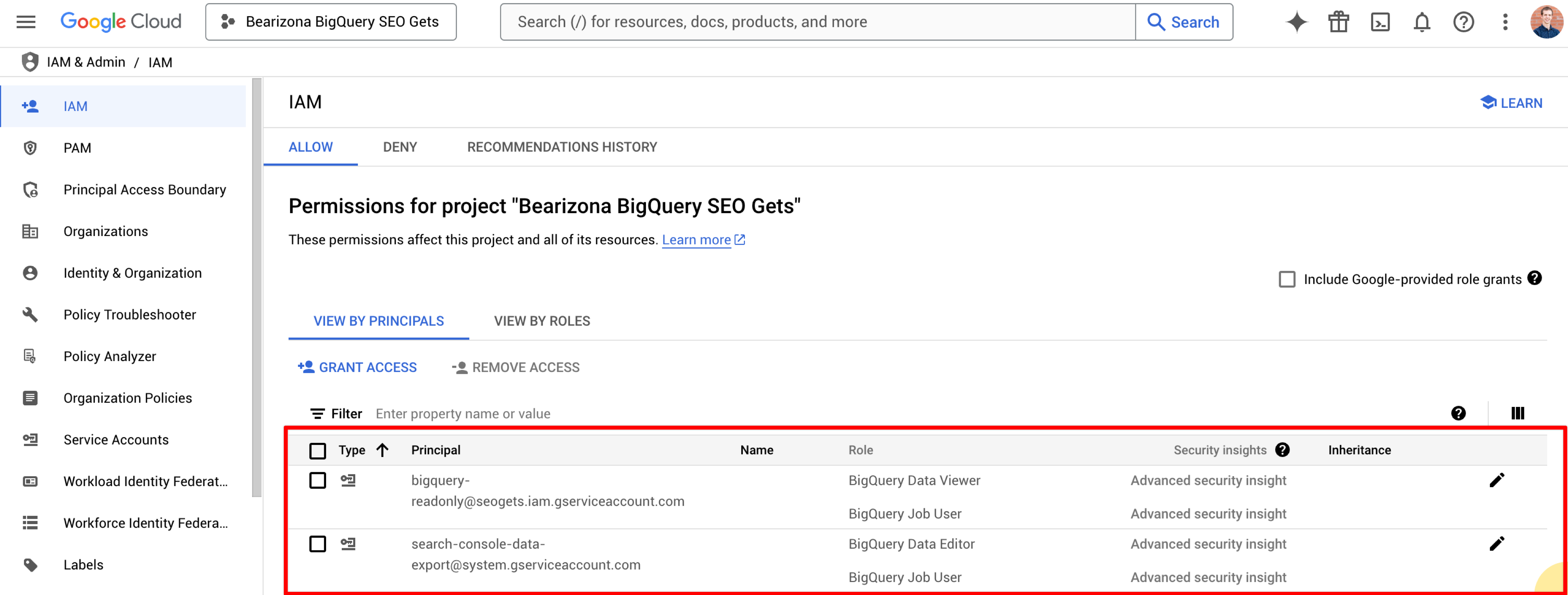
SEO Gets needs read-only access to your BigQuery dataset. In Google Cloud Console:
Open IAM & Admin → IAM in your Google Cloud Project
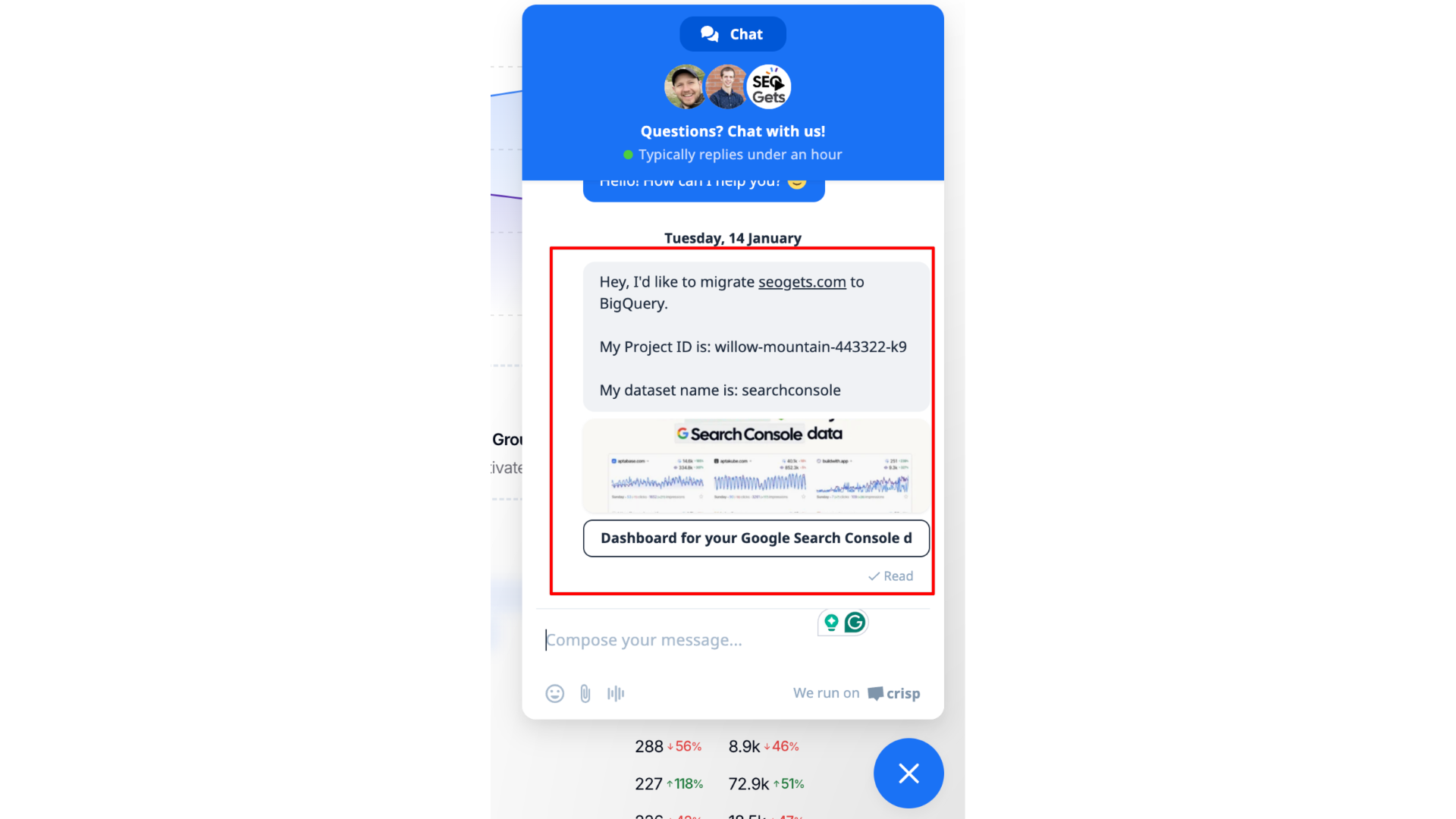
After granting permissions, reach out through the in-app chat (bottom right corner of your dashboard) and provide:
Website property — The site you want to switch
Google Cloud project ID — Use the project ID, not the project number
Dataset name — The BigQuery dataset where GSC exports your data
You can find your project ID and dataset name in Search Console under Settings → Bulk data export.
The SEO Gets team will switch your dashboard to read from BigQuery, typically within one business day.
Step 4: Verify the switch
Once the switch is complete, confirm your data source:
Go to Settings → Property Settings for your site
Scroll to the Data Source field
Verify it now shows BigQuery instead of Google Search Console
BigQuery vs GSC API
Here's how the data sources compare:
Feature
GSC API (Default)
BigQuery
Max rows per request
1,000
50,000
Historical data
16 months
From export start date
Setup required
None
GSC Bulk Data Export + IAM permissions
Data freshness
Real-time via API
Daily export from GSC
For most users, the default GSC API connection works great. Switch to BigQuery if you're hitting row limits, managing large sites, or need batch exports for custom analysis.
Switch back to GSC API
If you want to revert to pulling data directly from Google Search Console, contact SEO Gets support via the in-app chat and request the switch. The team can update your data source back to GSC.
Troubleshooting
I get an access denied (403) error when connecting BigQuery
This means SEO Gets' service account can't read your dataset. Work through this checklist:
Confirm the service account [email protected] was added in IAM & Admin → IAM
Confirm both roles are assigned: BigQuery Job User and BigQuery Data Viewer
Confirm the roles were granted in the correct Google Cloud project
Confirm you sent the project ID, not the project number
Confirm the dataset name matches what's shown in GSC Bulk data export
Once each item checks out, reach out through the in-app chat so we can retry the connection.
My data source still shows GSC after requesting the switch
Permission propagation in Google Cloud can take a few minutes. If the switch hasn't happened after one business day:
Confirm you added both BigQuery Job User and BigQuery Data Viewer roles
Verify you used the correct project ID (not the project number)
Check that the dataset name matches what's shown in GSC bulk data export
Missing historical data
Bulk Data Export doesn't backfill GSC's 16-month history—it starts collecting from the day you enable it, so BigQuery only contains data from that date forward. Anything older than your export start date won't appear in BigQuery, even if GSC still holds it. Newer data can be supplemented from GSC, but the historical window is bounded by when your export began. If you need older data, consider extended storage or export directly from GSC for historical queries.
I don't see Bulk Data Export in Search Console
Bulk Data Export is available at the property level in Search Console. Make sure you're viewing a property (not an account) and check under Settings. If it's still not visible, verify your Google Cloud project is properly linked to Search Console.