
Install Chrome extension
The SEO Gets Chrome Extension gives you quick access to GSC analytics for your connected properties while you browse, so you can check page-level data, add annotations, and jump into your dashboard without stopping what you’re doing. This customer-favorite extension is optional, but provides a valuable shortcut if you spend a lot of time reviewing pages in Chrome.
You’ll need an SEO Gets account before you can use the extension. If you’re still setting things up, start with the SEO Gets Quickstart Guide.
Install the extension
Open the SEO Gets Chrome Extension page in the Chrome Web Store.
Click Add to Chrome.
Review the Chrome permissions prompt, then confirm the install.
After the extension is added, pin it to your browser toolbar if you want faster access.
What the extension does
Once it’s installed, you can use it to work with SEO Gets from almost any page you’re already viewing from one of your connected properties.
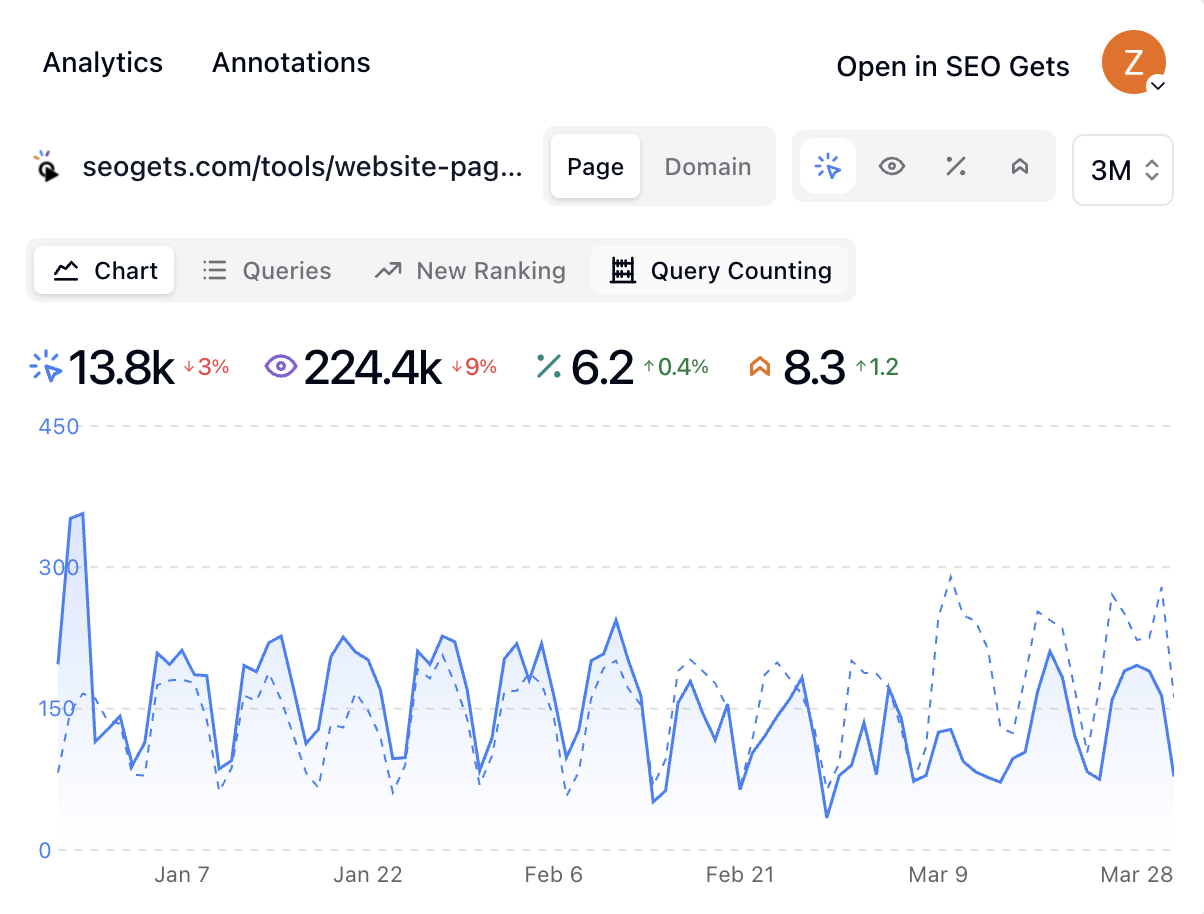
Access your Search Console analytics anywhere: pull key page metrics and website property data from virtually any URL on your site.
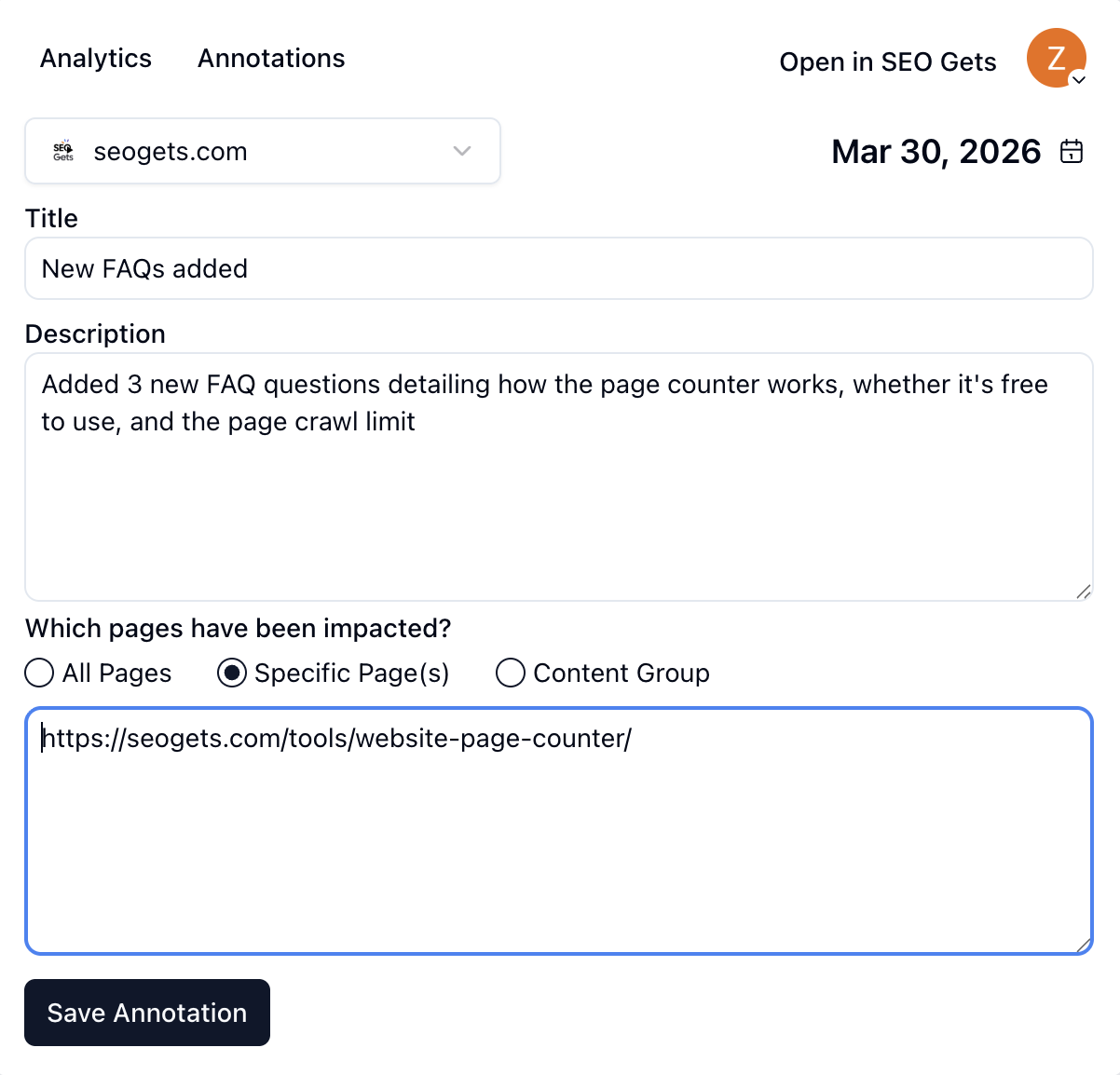
Add annotations in seconds: create detailed annotations in a few clicks that sync with your annotations report in SEO Gets.
Keep everything right where you’re already working: move from the page you're viewing to a pre-filtered view in SEO Gets without breaking your workflow.
Open the full platform in one click: jump into your SEO Gets dashboard for reporting, data management, and deeper analysis.
When to use it
The extension is helpful when you want fast, actionable data on the go. It’s especially useful for SEO professionals, marketers, and analysts who review lots of live pages and want instant context without opening a separate dashboard first.