
Getting started with filters
Filters help you narrow your data to surface specific insights. Instead of scrolling through thousands of rows, you can focus on what matters most, like branded searches, a specific country, or a particular page section. SEO Gets updates all dashboard widgets automatically when you apply a filter, so you see the filtered view everywhere.
Open the filter bar
Open any site from your master dashboard.
Click the Filter icon at the top of the dashboard.
The filter dropdown opens, showing all available filter options.
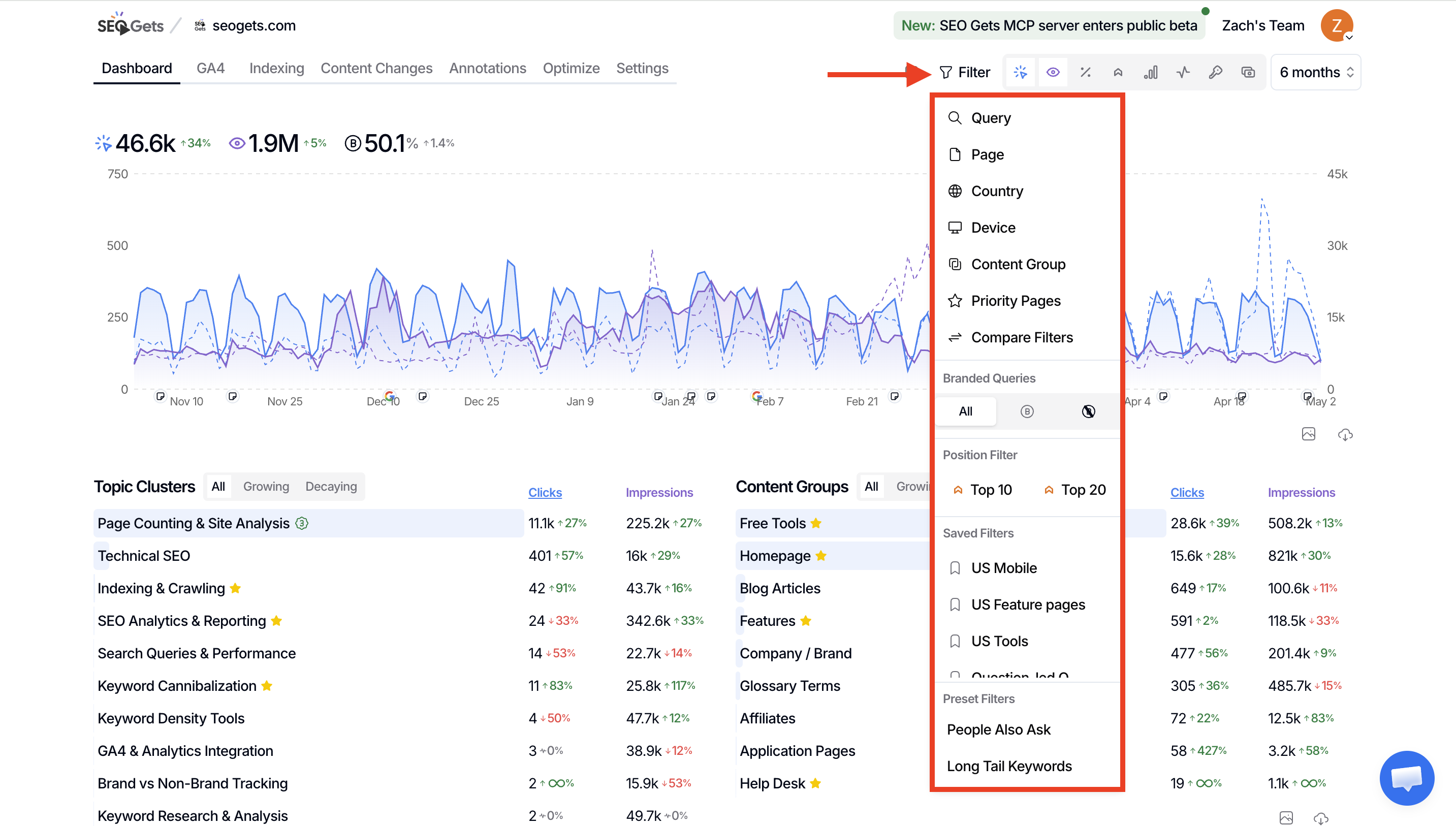
Basic filter types
These core filters are available in every dashboard:
Query
Filter by specific keywords or keyword patterns. Use this when you want to focus on branded terms, exclude certain queries, or find all searches containing a word or phrase.
Page
Filter by URL or URL pattern. Use this to analyze a specific section of your site (like /blog/ or /products/) or zero in on a single page's performance.
Country
Filter by geographic region. Use this to compare performance across markets, report on specific countries, or identify where your traffic is growing or declining.
Device
Filter by desktop, mobile, or tablet. Use this to spot device-specific issues—like mobile pages with lower CTR or tablet traffic that's underperforming.
Apply a basic filter
Click the Filter icon at the top of your dashboard.
Choose a filter type (Query, Page, Country, or Device).
Select or enter the value you want to filter by.
All widgets in the dashboard update automatically to show filtered data.
What's next
Once you're comfortable with basic filters, explore long-tail and LLM query filters to surface more specific search terms, or learn about saved filters to reuse your most common filter combinations.